快速入門
在本教程中,我們將構建一個簡單的 MCP 天氣服務器並將其連接到宿主(Claude for Desktop)。我們將從基本設置開始,然後逐步過渡到更復雜的用例。
我們要構建什麼
許多 LLM(包括 Claude)目前還沒有獲取天氣預報和嚴重天氣警報的能力。讓我們用 MCP 來解決這個問題!
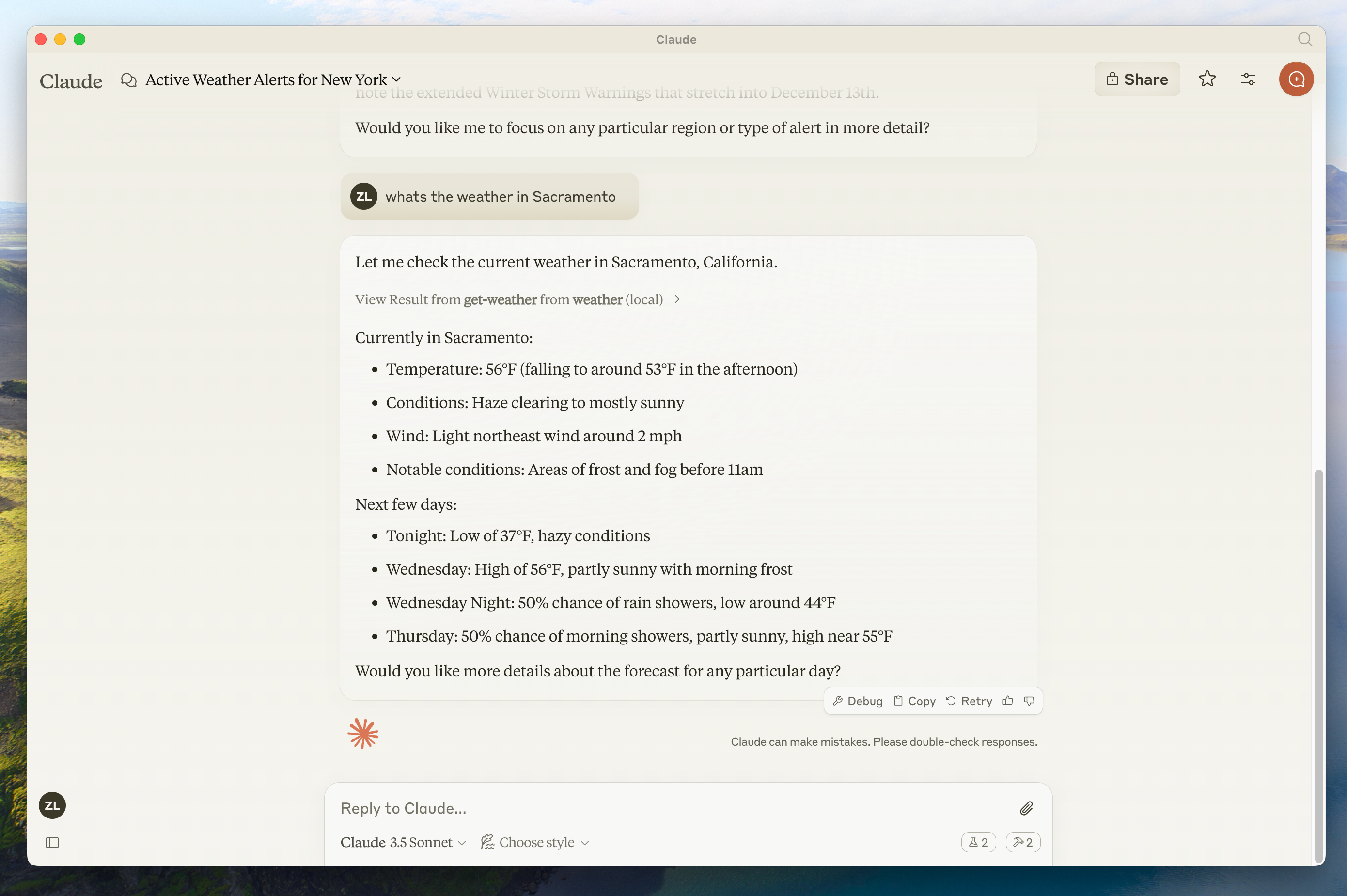
我們將構建一個暴露兩個工具的服務器:get-alerts 和 get-forecast。然後我們將服務器連接到 MCP 宿主(在這個例子中是 Claude for Desktop):

為什麼選擇 Claude for Desktop 而不是 Claude.ai?
MCP 核心概念
MCP 服務器可以提供三種主要類型的功能:
- 資源(Resources): 客戶端可以讀取的文件類數據(如 API 響應或文件內容)
- 工具(Tools): 可以由 LLM 調用的函數(需要用戶批准)
- 提示(Prompts): 幫助用戶完成特定任務的預寫模板
本教程重點介紹工具,但如果你想了解更多關於資源和提示的內容,我們也有進階教程。
前置知識
此快速入門假設你熟悉:
- Python
- LLM(如 Claude)
系統要求
對於 Python,請確保你安裝了 Python 3.9 或更高版本。
配置環境
首先,讓我們安裝 uv 並設置 Python 項目和環境:
curl -LsSf https://astral.sh/uv/install.sh | shpowershell -ExecutionPolicy ByPass -c "irm https://astral.sh/uv/install.ps1 | iex"安裝後請重啟終端以確保 uv 命令可用。
現在,讓我們創建並設置項目:
# 創建項目新目錄
uv init weather
cd weather

# 創建虛擬環境並激活
uv venv
source .venv/bin/activate

# 安裝依賴
uv add mcp httpx

# 刪除模板文件
rm hello.py

# 創建所需文件
mkdir -p src/weather
touch src/weather/__init__.py
touch src/weather/server.py
# 創建項目新目錄
uv init weather
cd weather
# 創建虛擬環境並激活
uv venv
.venv\Scripts\activate
# 安裝依賴
uv add mcp httpx
# 刪除樣板代碼
rm hello.py
# 創建所需文件
md src
md src\weather
new-item src\weather\__init__.py
new-item src\weather\server.py在 pyproject.toml 中添加以下代碼:
...rest of config

[build-system]
requires = [ "hatchling",]
build-backend = "hatchling.build"

[project.scripts]
weather = "weather:main"
在 __init__.py 中添加以下代碼:
from . import server
import asyncio

def main():
    """包的主入口點。"""
    asyncio.run(server.main())

# 可選:在包級別暴露其他重要項
__all__ = ['main', 'server']
現在讓我們開始構建服務器。
構建服務器
導入包
在 server.py 頂部添加以下內容:
from typing import Any
import asyncio
import httpx
from mcp.server.models import InitializationOptions
import mcp.types as types
from mcp.server import NotificationOptions, Server
import mcp.server.stdio
設置實例
然後初始化服務器實例和 NWS API 的基礎 URL:
NWS_API_BASE = "https://api.weather.gov"
USER_AGENT = "weather-app/1.0"

server = Server("weather")
實現工具列表
我們需要告訴客戶端有哪些工具可用。list_tools() 裝飾器註冊此處理程序:
@server.list_tools()
async def handle_list_tools() -> list[types.Tool]:
    """
    列出可用的工具。
    每個工具使用 JSON Schema 驗證來指定其參數。
    """
    return [
        types.Tool(
            name="get-alerts",
            description="獲取某個州的天氣預警",
            inputSchema={
                "type": "object",
                "properties": {
                    "state": {
                        "type": "string",
                        "description": "兩字母州代碼(如 CA, NY)",
                    },
                },
                "required": ["state"],
            },
        ),
        types.Tool(
            name="get-forecast",
            description="獲取某個位置的天氣預報",
            inputSchema={{
                "type": "object",
                "properties": {
                    "latitude": {
                        "type": "number",
                        "description": "位置的緯度",
                    },
                    "longitude": {
                        "type": "number",
                        "description": "位置的經度",
                    },
                },
                "required": ["latitude", "longitude"],
            },
        ),
]這定義了我們的兩個工具:get-alerts 和 get-forecast。
輔助函數
接下來,讓我們添加用於查詢和格式化國家氣象服務 API 數據的輔助函數:
async def make_nws_request(client: httpx.AsyncClient, url: str) -> dict[str, Any] | None:
    """發送 NWS API 請求並進行適當的錯誤處理。"""
    headers = {
        "User-Agent": USER_AGENT,
        "Accept": "application/geo+json"
    }

    try:
        response = await client.get(url, headers=headers, timeout=30.0)
        response.raise_for_status()
        return response.json()
    except Exception:
        return None

def format_alert(feature: dict) -> str:
    """將預警特徵格式化為簡明的字符串。"""
    props = feature["properties"]
    return (
        f"事件: {props.get('event', '未知')}\n"
        f"區域: {props.get('areaDesc', '未知')}\n"
        f"嚴重程度: {props.get('severity', '未知')}\n"
        f"狀態: {props.get('status', '未知')}\n"
        f"標題: {props.get('headline', '無標題')}\n"
        "---"
    )
實現工具執行
工具執行處理程序負責實際執行每個工具的邏輯。讓我們添加它:
@server.call_tool()
async def handle_call_tool(
    name: str, arguments: dict | None
) -> list[types.TextContent | types.ImageContent | types.EmbeddedResource]:
    """
    處理工具執行請求。
    工具可以獲取天氣數據並通知客戶端變更。
    """
    if not arguments:
        raise ValueError("缺少參數")

    if name == "get-alerts":
        state = arguments.get("state")
        if not state:
            raise ValueError("缺少州參數")

        # 轉換州代碼為大寫以確保格式一致
        state = state.upper()
        if len(state) != 2:
            raise ValueError("州必須是兩字母代碼(如 CA, NY)")

        async with httpx.AsyncClient() as client:
            alerts_url = f"{NWS_API_BASE}/alerts?area={state}"
            alerts_data = await make_nws_request(client, alerts_url)

            if not alerts_data:
                return [types.TextContent(type="text", text="獲取預警數據失敗")]

            features = alerts_data.get("features", [])
            if not features:
                return [types.TextContent(type="text", text=f"{state} 沒有活動預警")]

            # 格式化每個預警為簡明字符串
            formatted_alerts = [format_alert(feature) for feature in features[:20]]  # 僅取前20個預警
            alerts_text = f"{state} 的活動預警:\n\n" + "\n".join(formatted_alerts)

            return [
                types.TextContent(
                    type="text",
                    text=alerts_text
                )
            ]
    elif name == "get-forecast":
        try:
            latitude = float(arguments.get("latitude"))
            longitude = float(arguments.get("longitude"))
        except (TypeError, ValueError):
            return [types.TextContent(
                type="text",
                text="無效的座標。請提供有效的緯度和經度數值。"
            )]

        # 基本座標驗證
        if not (-90 <= latitude <= 90) or not (-180 <= longitude <= 180):
            return [types.TextContent(
                type="text",
                text="無效的座標。緯度必須在 -90 到 90 之間,經度必須在 -180 到 180 之間。"
            )]

        async with httpx.AsyncClient() as client:
            # 首先獲取網格點
            lat_str = f"{latitude}"
            lon_str = f"{longitude}"
            points_url = f"{NWS_API_BASE}/points/{lat_str},{lon_str}"
            points_data = await make_nws_request(client, points_url)

            if not points_data:
                return [types.TextContent(type="text", text=f"無法獲取座標 {latitude}, {longitude} 的網格點數據。此位置可能不受 NWS API 支持(僅支持美國地點)。")]

            # 從響應中提取預報 URL
            properties = points_data.get("properties", {})
            forecast_url = properties.get("forecast")

            if not forecast_url:
                return [types.TextContent(type="text", text="無法從網格點數據獲取預報 URL")]

            # 獲取預報
            forecast_data = await make_nws_request(client, forecast_url)

            if not forecast_data:
                return [types.TextContent(type="text", text="獲取預報數據失敗")]

            # 格式化預報時段
            periods = forecast_data.get("properties", {}).get("periods", [])
            if not periods:
                return [types.TextContent(type="text", text="沒有可用的預報時段")]

            # 將每個時段格式化為簡明字符串
            formatted_forecast = []
            for period in periods:
                forecast_text = (
                    f"{period.get('name', '未知')}:\n"
                    f"溫度: {period.get('temperature', '未知')}°{period.get('temperatureUnit', 'F')}\n"
                    f"風: {period.get('windSpeed', '未知')} {period.get('windDirection', '')}\n"
                    f"{period.get('shortForecast', '無可用預報')}\n"
                    "---"
                )
                formatted_forecast.append(forecast_text)

            forecast_text = f"座標 {latitude}, {longitude} 的預報:\n\n" + "\n".join(formatted_forecast)

            return [types.TextContent(
                type="text",
                text=forecast_text
            )]
    else:
        raise ValueError(f"未知工具: {name}")
運行服務器
最後,實現主函數以運行服務器:
async def main():
    # 使用標準輸入/輸出流運行服務器
    async with mcp.server.stdio.stdio_server() as (read_stream, write_stream):
        await server.run(
            read_stream,
            write_stream,
            InitializationOptions(
                server_name="weather",
                server_version="0.1.0",
                capabilities=server.get_capabilities(
                    notification_options=NotificationOptions(),
                    experimental_capabilities={},
                ),
            ),
        )

# 如果你想連接到自定義客戶端,這是必需的
if __name__ == "__main__":
    asyncio.run(main())
你的服務器已經完成了! 運行 uv run src/weather/server.py 來確認一切正常。
使用命令測試
首先,確保 Claude for Desktop 能夠識別到我們在 weather 服務器中暴露的兩個工具。你可以通過查找錘子圖標  來確認:
來確認:

點擊錘子圖標後,你應該能看到列出的兩個工具:

如果你的服務器沒有被 Claude for Desktop 識別,請轉到故障排除部分獲取調試建議。
現在你可以在 Claude for Desktop 中運行以下命令來測試你的服務器:
- Sacramento 的天氣如何?
- Texas 有哪些活動的天氣預警?

幕後原理
當你提出一個問題時:
- 客戶端將你的問題發送給 Claude
- Claude 分析可用的工具並決定使用哪些工具
- 客戶端通過 MCP 服務器執行選定的工具
- 結果返回給 Claude
- Claude 生成自然語言響應
- 響應顯示給你!
故障排除
天氣 API 問題
錯誤:無法獲取網格點數據
這通常意味著:
- 座標在美國境外
- NWS API 出現問題
- 你被限制了請求頻率
解決方案:
- 驗證你使用的是美國境內的座標
- 在請求之間添加小的延遲
- 檢查 NWS API 狀態頁面
錯誤:[州] 沒有活動預警
這不是錯誤 - 這只是意味著該州目前沒有天氣預警。可以嘗試查詢其他州或在惡劣天氣期間檢查。
Claude for Desktop 集成問題
服務器未在 Claude 中顯示
- 檢查配置文件語法
- 確保項目路徑正確
- 完全重啟 Claude for Desktop
你也可以這樣檢查 Claude 的日誌:
# 檢查 Claude 的錯誤日誌
tail -n 20 -f ~/Library/Logs/Claude/mcp*.log
工具調用靜默失敗
如果 Claude 嘗試使用工具但失敗了:
- 檢查 Claude 的錯誤日誌
- 驗證你的服務器運行無誤
- 嘗試重啟 Claude for Desktop
下一步
前置知識
此快速入門假設你熟悉:
- TypeScript
- LLM(如 Claude)
系統要求
對於 TypeScript,請確保安裝了最新版本的 Node.js。
配置環境
首先,如果你還沒有安裝 Node.js 和 npm,請從 nodejs.org 下載安裝。 驗證你的 Node.js 安裝:
node --version
npm --version
本教程需要 Node.js 16 或更高版本。
現在,讓我們創建並設置項目:
# 創建項目新目錄
mkdir weather
cd weather

# 初始化新的 npm 項目
npm init -y

# 安裝依賴
npm install @modelcontextprotocol/sdk zod
npm install -D @types/node typescript

# 創建文件
mkdir src
touch src/index.ts
# 創建項目新目錄
md weather
cd weather
# 初始化新的 npm 項目
npm init -y
# 安裝依賴
npm install @modelcontextprotocol/sdk zod
npm install -D @types/node typescript
# 創建文件
md src
new-item src\index.ts更新 package.json 添加 type: “module” 和構建腳本:
{
  "type": "module",
  "bin": {
    "weather": "./build/index.js"
  },
  "scripts": {
    "build": "tsc && node -e \"require('fs').chmodSync('build/index.js', '755')\"",
  },
  "files": [
    "build"
  ],
}
在項目根目錄創建 tsconfig.json:
{
  "compilerOptions": {
    "target": "ES2022",
    "module": "Node16",
    "moduleResolution": "Node16",
    "outDir": "./build",
    "rootDir": "./src",
    "strict": true,
    "esModuleInterop": true,
    "skipLibCheck": true,
    "forceConsistentCasingInFileNames": true
  },
  "include": ["src/**/*"],
  "exclude": ["node_modules"]
}
現在讓我們開始構建服務器。
構建服務器
導入包
在 src/index.ts 頂部添加以下內容:
import { Server } from "@modelcontextprotocol/sdk/server/index.js";
import { StdioServerTransport } from "@modelcontextprotocol/sdk/server/stdio.js";
import {
  CallToolRequestSchema,
  ListToolsRequestSchema,
} from "@modelcontextprotocol/sdk/types.js";
import { z } from "zod";
設置實例
然後初始化 NWS API 的基礎 URL、驗證模式和服務器實例:
const NWS_API_BASE = "https://api.weather.gov";
const USER_AGENT = "weather-app/1.0";

// 定義 Zod 模式進行驗證
const AlertsArgumentsSchema = z.object({
  state: z.string().length(2),
});

const ForecastArgumentsSchema = z.object({
  latitude: z.number().min(-90).max(90),
  longitude: z.number().min(-180).max(180),
});

// 創建服務器實例
const server = new Server(
  {
    name: "weather",
    version: "1.0.0",
  },
  {
    capabilities: {
      tools: {},
    },
  }
);
實現工具列表
我們需要告訴客戶端有哪些工具可用。這個 server.setRequestHandler 調用將為我們註冊此列表:
// 列出可用的工具
server.setRequestHandler(ListToolsRequestSchema, async () => {
  return {
    tools: [
      {
        name: "get-alerts",
        description: "獲取某個州的天氣預警",
        inputSchema: {
          type: "object",
          properties: {
            state: {
              type: "string",
              description: "兩字母州代碼(如 CA, NY)",
            },
          },
          required: ["state"],
        },
      },
      {
        name: "get-forecast",
        description: "獲取某個位置的天氣預報",
        inputSchema: {
          type: "object",
          properties: {
            latitude: {
              type: "number",
              description: "位置的緯度",
            },
            longitude: {
              type: "number",
              description: "位置的經度",
            },
          },
          required: ["latitude", "longitude"],
        },
      },
    ],
  };
});這定義了我們的兩個工具:get-alerts 和 get-forecast。
輔助函數
接下來,讓我們添加用於查詢和格式化國家氣象服務 API 數據的輔助函數:
// 用於發起 NWS API 請求的輔助函數
async function makeNWSRequest<T>(url: string): Promise<T | null> {
  const headers = {
    "User-Agent": USER_AGENT,
    Accept: "application/geo+json",
  };

  try {
    const response = await fetch(url, { headers });
    if (!response.ok) {
      throw new Error(`HTTP error! status: ${response.status}`);
    }
    return (await response.json()) as T;
  } catch (error) {
    console.error("Error making NWS request:", error);
    return null;
  }
}

interface AlertFeature {
  properties: {
    event?: string;
    areaDesc?: string;
    severity?: string;
    status?: string;
    headline?: string;
  };
}

// 格式化預警數據
function formatAlert(feature: AlertFeature): string {
  const props = feature.properties;
  return [
    `Event: ${props.event || "Unknown"}`,
    `Area: ${props.areaDesc || "Unknown"}`,
    `Severity: ${props.severity || "Unknown"}`,
    `Status: ${props.status || "Unknown"}`,
    `Headline: ${props.headline || "No headline"}`,
    "---",
  ].join("\n");
}

interface ForecastPeriod {
  name?: string;
  temperature?: number;
  temperatureUnit?: string;
  windSpeed?: string;
  windDirection?: string;
  shortForecast?: string;
}

interface AlertsResponse {
  features: AlertFeature[];
}

interface PointsResponse {
  properties: {
    forecast?: string;
  };
}

interface ForecastResponse {
  properties: {
    periods: ForecastPeriod[];
  };
}
實現工具執行
工具執行處理程序負責實際執行每個工具的邏輯。讓我們添加它:
// 處理工具執行
server.setRequestHandler(CallToolRequestSchema, async (request) => {
  const { name, arguments: args } = request.params;

  try {
    if (name === "get-alerts") {
      const { state } = AlertsArgumentsSchema.parse(args);
      const stateCode = state.toUpperCase();

      const alertsUrl = `${NWS_API_BASE}/alerts?area=${stateCode}`;
      const alertsData = await makeNWSRequest<AlertsResponse>(alertsUrl);

      if (!alertsData) {
        return {
          content: [
            {
              type: "text",
              text: "Failed to retrieve alerts data",
            },
          ],
        };
      }

      const features = alertsData.features || [];
      if (features.length === 0) {
        return {
          content: [
            {
              type: "text",
              text: `No active alerts for ${stateCode}`,
            },
          ],
        };
      }

      const formattedAlerts = features.map(formatAlert).slice(0, 20) // only take the first 20 alerts;
      const alertsText = `Active alerts for ${stateCode}:\n\n${formattedAlerts.join(
        "\n"
      )}`;

      return {
        content: [
          {
            type: "text",
            text: alertsText,
          },
        ],
      };
    } else if (name === "get-forecast") {
      const { latitude, longitude } = ForecastArgumentsSchema.parse(args);

      // 獲取網格點數據
      const pointsUrl = `${NWS_API_BASE}/points/${latitude.toFixed(
        4
      )},${longitude.toFixed(4)}`;
      const pointsData = await makeNWSRequest<PointsResponse>(pointsUrl);

      if (!pointsData) {
        return {
          content: [
            {
              type: "text",
              text: `Failed to retrieve grid point data for coordinates: ${latitude}, ${longitude}. This location may not be supported by the NWS API (only US locations are supported).`,
            },
          ],
        };
      }

      const forecastUrl = pointsData.properties?.forecast;
      if (!forecastUrl) {
        return {
          content: [
            {
              type: "text",
              text: "Failed to get forecast URL from grid point data",
            },
          ],
        };
      }

      // 獲取預報數據
      const forecastData = await makeNWSRequest<ForecastResponse>(forecastUrl);
      if (!forecastData) {
        return {
          content: [
            {
              type: "text",
              text: "Failed to retrieve forecast data",
            },
          ],
        };
      }

      const periods = forecastData.properties?.periods || [];
      if (periods.length === 0) {
        return {
          content: [
            {
              type: "text",
              text: "No forecast periods available",
            },
          ],
        };
      }

      // 格式化預報時段
      const formattedForecast = periods.map((period: ForecastPeriod) =>
        [
          `${period.name || "Unknown"}:`,
          `Temperature: ${period.temperature || "Unknown"}°${
            period.temperatureUnit || "F"
          }`,
          `Wind: ${period.windSpeed || "Unknown"} ${
            period.windDirection || ""
          }`,
          `${period.shortForecast || "No forecast available"}`,
          "---",
        ].join("\n")
      );

      const forecastText = `Forecast for ${latitude}, ${longitude}:\n\n${formattedForecast.join(
        "\n"
      )}`;

      return {
        content: [
          {
            type: "text",
            text: forecastText,
          },
        ],
      };
    } else {
      throw new Error(`Unknown tool: ${name}`);
    }
  } catch (error) {
    if (error instanceof z.ZodError) {
      throw new Error(
        `Invalid arguments: ${error.errors
          .map((e) => `${e.path.join(".")}: ${e.message}`)
          .join(", ")}`
      );
    }
    throw error;
  }
});
運行服務器
最後,實現主函數以運行服務器:
// 啟動服務器
async function main() {
  const transport = new StdioServerTransport();
  await server.connect(transport);
  console.error("Weather MCP Server running on stdio");
}

main().catch((error) => {
  console.error("Fatal error in main():", error);
  process.exit(1);
});
確保運行 npm run build 來構建你的服務器! 這是讓你的服務器連接的非常重要的一步。
現在讓我們從現有的 MCP 宿主 Claude for Desktop 測試你的服務器。
使用 Claude for Desktop 測試你的服務器
首先,確保你已經安裝了 Claude for Desktop。你可以在這裡下載最新版本。
接下來,在文本編輯器中打開 Claude for Desktop 應用配置 ~/Library/Application Support/Claude/claude_desktop_config.json。
例如,如果你安裝了 VS Code:
code ~/Library/Application\ Support/Claude/claude_desktop_config.jsoncode $env:AppData\Claude\claude_desktop_config.json添加此配置(替換父文件夾路徑):
{
    "mcpServers": {
        "weather": {
            "command": "node",
            "args": [
                "/ABSOLUTE/PATH/TO/PARENT/FOLDER/weather/build/index.js"
            ]
        }
    }
}
{
"mcpServers": {
"weather": {
"command": "node",
"args": [
"C:\\PATH\\TO\\PARENT\\FOLDER\\weather\\build\\index.js"
]
}
}
}這告訴 Claude for Desktop:
- 有一個名為 “weather” 的 MCP 服務器
- 通過運行
node /ABSOLUTE/PATH/TO/PARENT/FOLDER/weather/build/index.js啟動它
保存文件,並重啟 Claude for Desktop。
使用命令測試
首先,確保 Claude for Desktop 能夠識別到我們在 weather 服務器中暴露的兩個工具。你可以通過查找錘子圖標 來確認:
點擊錘子圖標後,你應該能看到列出的兩個工具:
如果你的服務器沒有被 Claude for Desktop 識別,請轉到故障排除部分獲取調試建議。
現在你可以在 Claude for Desktop 中運行以下命令來測試你的服務器:
- Sacramento 的天氣如何?
- Texas 有哪些活動的天氣預警?
幕後原理
當你提出一個問題時:
- 客戶端將你的問題發送給 Claude
- Claude 分析可用的工具並決定使用哪些工具
- 客戶端通過 MCP 服務器執行選定的工具
- 結果返回給 Claude
- Claude 生成自然語言響應
- 響應顯示給你!
故障排除
天氣 API 問題
錯誤:無法獲取網格點數據
這通常意味著:
- 座標在美國境外
- NWS API 出現問題
- 你被限制了請求頻率
解決方案:
- 驗證你使用的是美國境內的座標
- 在請求之間添加小的延遲
- 檢查 NWS API 狀態頁面
錯誤:[州] 沒有活動預警
這不是錯誤 - 這只是意味著該州目前沒有天氣預警。可以嘗試查詢其他州或在惡劣天氣期間檢查。
Claude for Desktop 集成問題
服務器未在 Claude 中顯示
- 檢查配置文件語法
- 確保項目路徑正確
- 完全重啟 Claude for Desktop
你也可以這樣檢查 Claude 的日誌:
# 檢查 Claude 的錯誤日誌
tail -n 20 -f ~/Library/Logs/Claude/mcp*.log
工具調用靜默失敗
如果 Claude 嘗試使用工具但失敗了:
- 檢查 Claude 的錯誤日誌
- 驗證你的服務器運行無誤
- 嘗試重啟 Claude for Desktop