构建 MCP App
社区译文;来源: MCP 80041ab0
前置条件
你需要安装 Node.js 18 或更高版本。由于 MCP Apps 组合使用了 MCP 工具 和资源 这两种原语,建议先熟悉它们。具备 MCP TypeScript SDK 使用经验,有助于更好地理解服务器端模式。
开始使用
创建 MCP App 最快的方式,是使用具备 MCP Apps Skill 的 AI 编码 Agent。如果希望手动设置项目,请直接阅读手动设置 。
使用 AI 编码 Agent
支持 Skills 的 AI 编码 Agent 可以为你搭建完整的 MCP App 项目。Skills 是由指令和资源组成的文件夹,Agent 会在相关场景下加载它们。Skills 教会 AI 如何执行构建 MCP Apps 等专门任务。
create-mcp-app Skill 包含架构指导、最佳实践和可运行示例,Agent 会利用这些内容生成项目。
安装 Skill
如果你使用 Claude Code,可以直接执行以下命令安装 Skill:
/plugin marketplace add modelcontextprotocol/ext-apps
/plugin install mcp-apps@modelcontextprotocol-ext-apps
也可以使用 Vercel Skills CLI 为不同 AI 编码 Agent 安装 Skills:
npx skills add modelcontextprotocol/ext-apps或者克隆 ext-apps 仓库,手动安装 Skill:
git clone https://github.com/modelcontextprotocol/ext-apps.git然后把 Skill 复制到 Agent 对应的位置:
| Agent | Skills 目录(macOS/Linux) | Skills 目录(Windows) |
|---|---|---|
| Claude Code | ~/.claude/skills/ | %USERPROFILE%\.claude\skills\ |
| VS Code 和 GitHub Copilot | ~/.copilot/skills/ | %USERPROFILE%\.copilot\skills\ |
| Gemini CLI | ~/.gemini/skills/ | %USERPROFILE%\.gemini\skills\ |
| Cline | ~/.cline/skills/ | %USERPROFILE%\.cline\skills\ |
| Goose | ~/.config/goose/skills/ | %USERPROFILE%\.config\goose\skills\ |
| Codex | ~/.codex/skills/ | %USERPROFILE%\.codex\skills\ |
| Cursor | ~/.cursor/skills/ | %USERPROFILE%\.cursor\skills\ |
例如,使用 Claude Code 时,可以全局安装 Skill,使其对所有项目可用:
cp -r ext-apps/plugins/mcp-apps/skills/create-mcp-app ~/.claude/skills/create-mcp-appCopy-Item -Recurse ext-apps\plugins\mcp-apps\skills\create-mcp-app $env:USERPROFILE\.claude\skills\create-mcp-app也可以只为单个项目安装,把 Skill 复制到项目目录中的 .claude/skills/:
mkdir -p .claude/skills && cp -r ext-apps/plugins/mcp-apps/skills/create-mcp-app .claude/skills/create-mcp-appNew-Item -ItemType Directory -Force -Path .claude\skills | Out-Null; Copy-Item -Recurse ext-apps\plugins\mcp-apps\skills\create-mcp-app .claude\skills\create-mcp-app要验证 Skill 是否已安装,请询问 Agent:“What skills do you have access to?”。你应该会在可用 Skills 中看到 create-mcp-app。
创建应用
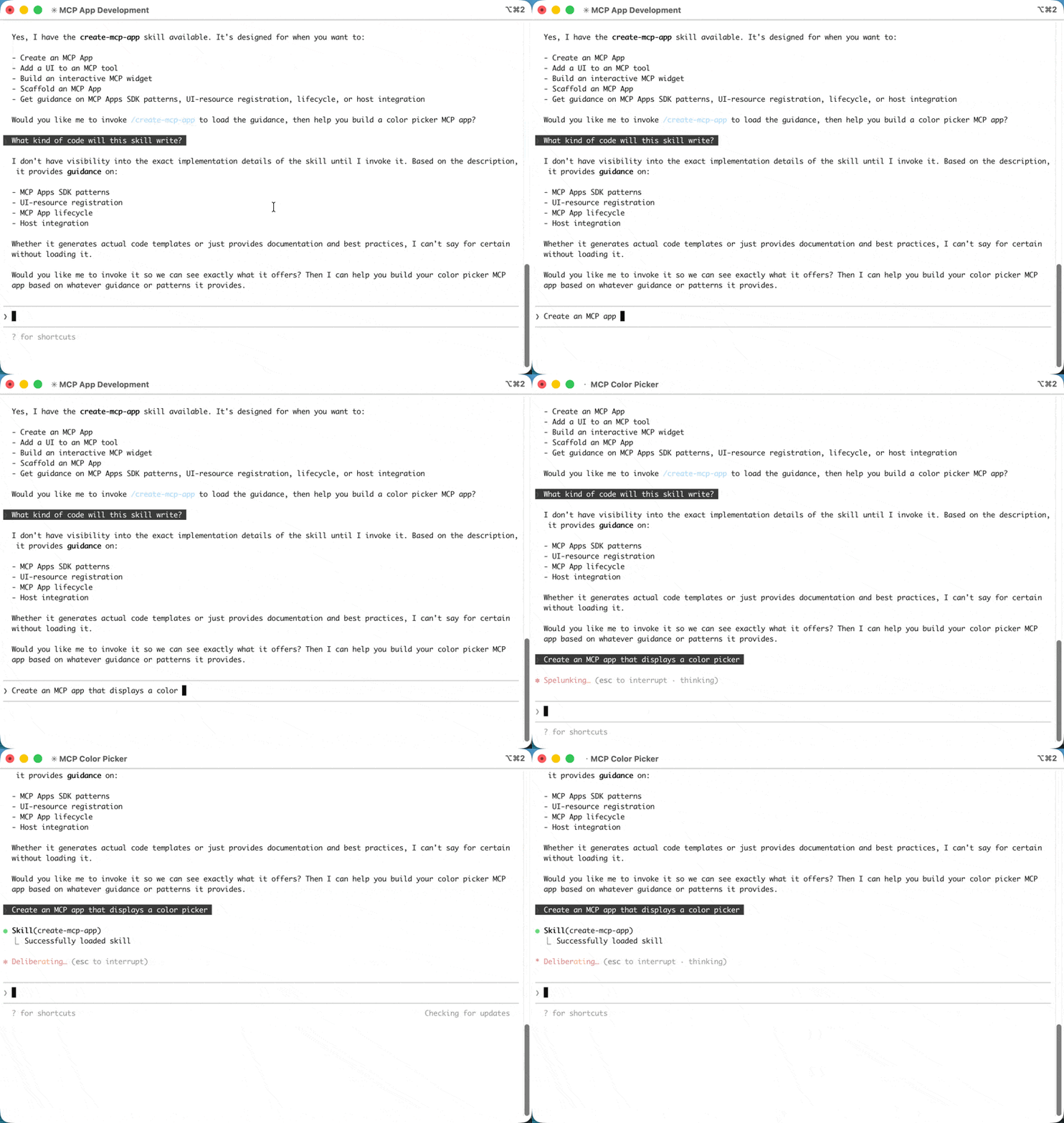
要求 AI 编码 Agent 构建应用:
Create an MCP App that displays a color pickerAgent 会识别出 create-mcp-app Skill 与任务相关,加载其中的指令,然后搭建包含服务器、UI 和配置文件的完整项目。
运行应用
npm install && npm run build && npm run servenpm install; npm run build; npm run serve测试应用
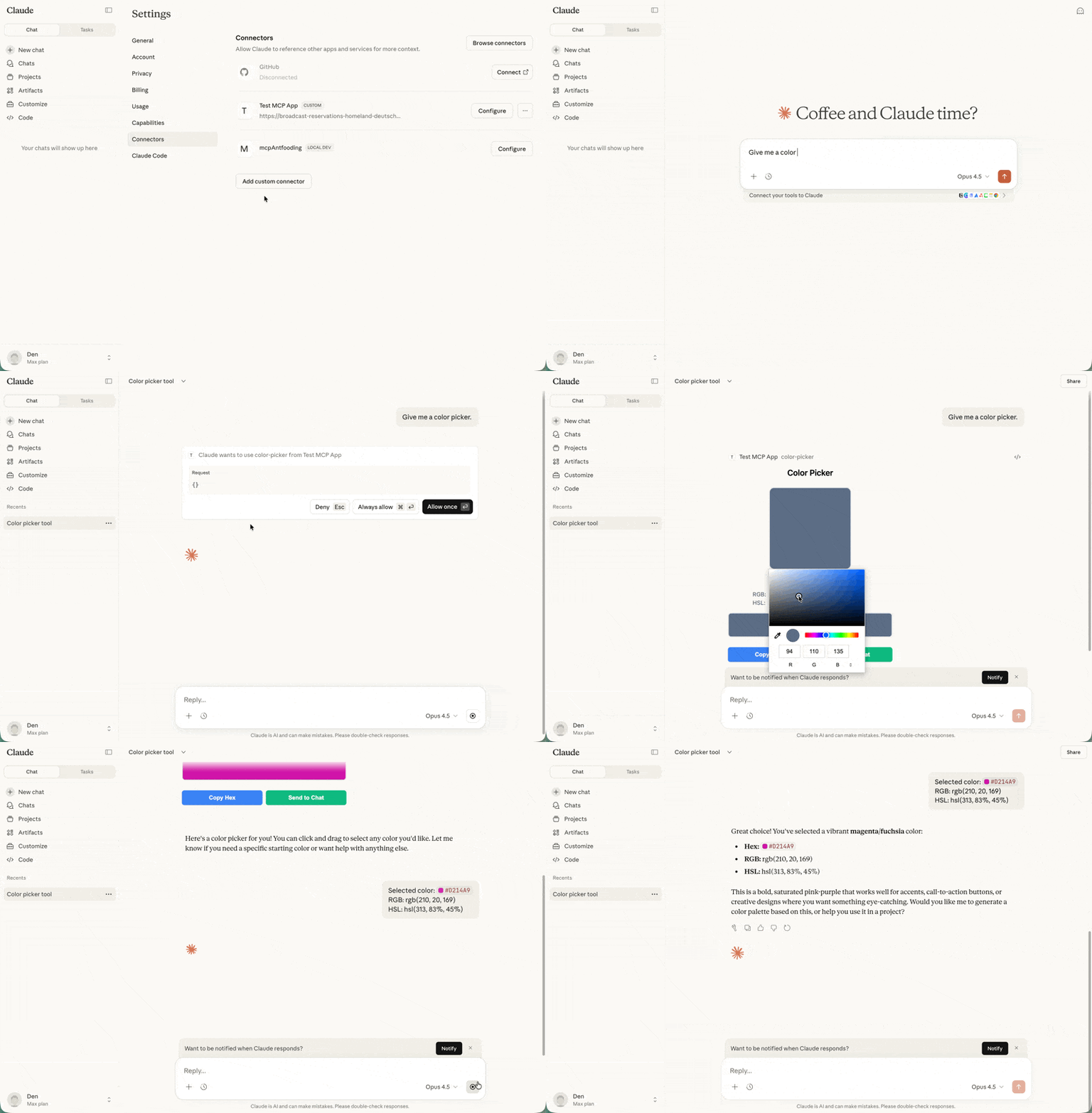
按照下文测试应用 中的说明进行操作。对于颜色选择器示例,请开始一个新对话,并让 Claude 提供颜色选择器。
手动设置
如果你不使用 AI 编码 Agent,或者希望了解设置过程,请按照以下步骤操作。
创建项目结构
典型的 MCP App 项目会将服务器代码与 UI 代码分开:
- my-mcp-app/
package.jsontsconfig.jsonvite.config.tsserver.ts- 包含工具和资源的 MCP 服务器mcp-app.html- UI 入口点- src/
mcp-app.ts- UI 逻辑
服务器注册工具并提供 UI 资源。UI 资源最终会在安全 iframe 中呈现,并采用默认拒绝的 CSP 配置。如果应用包含 CSS 和 JS 资源,则需要配置 CSP
;也可以使用 vite-plugin-singlefile 等工具把资源打包进 HTML,本教程将采用后一种方式。
安装依赖
npm install @modelcontextprotocol/ext-apps @modelcontextprotocol/sdk
npm install -D typescript vite vite-plugin-singlefile express cors @types/express @types/cors tsx
ext-apps 软件包同时为服务器端(注册工具和资源)与客户端(用于 UI 和宿主通信的 App 类)提供辅助工具。这里使用 Vite 和 vite-plugin-singlefile 插件,把 UI 与资源打包为单个 HTML 文件以简化操作,但这并非强制要求;如果已配置 CSP
,也可以使用任意打包器,或直接提供未打包的文件。
配置项目
package.json
"type": "module" 设置启用 ES 模块语法。build 脚本通过 INPUT 环境变量告诉 Vite 要打包哪个 HTML 文件。serve 脚本使用 tsx 执行 TypeScript 服务器。
{
  "type": "module",
  "scripts": {
    "build": "INPUT=mcp-app.html vite build",
    "serve": "npx tsx server.ts"
  }
}
tsconfig.json
TypeScript 配置以现代 JavaScript(ES2022)为目标,并使用带 bundler 解析方式的 ESNext 模块,这与 Vite 配合良好。include 数组同时覆盖根目录中的服务器代码和 src/ 中的 UI 代码。
{
  "compilerOptions": {
    "target": "ES2022",
    "module": "ESNext",
    "moduleResolution": "bundler",
    "strict": true,
    "esModuleInterop": true,
    "skipLibCheck": true,
    "outDir": "dist"
  },
  "include": ["*.ts", "src/**/*.ts"]
}
vite.config.ts
import { defineConfig } from "vite";
import { viteSingleFile } from "vite-plugin-singlefile";

export default defineConfig({
  plugins: [viteSingleFile()],
  build: {
    outDir: "dist",
    rollupOptions: {
      input: process.env.INPUT,
    },
  },
});
构建项目
项目结构和配置就绪后,请继续阅读下文的构建 MCP App ,实现服务器和 UI。
构建 MCP App
下面构建一个显示当前服务器时间的简单应用。此示例展示完整模式:注册带 UI 元数据的工具、以资源形式提供已打包的 HTML,以及构建与服务器通信的 UI。
实现服务器
服务器需要完成两件事:注册包含 _meta.ui.resourceUri 字段的工具,以及注册用于提供已打包 HTML 的资源处理程序。完整服务器文件如下:
// server.ts
console.log("Starting MCP App server...");

import { McpServer } from "@modelcontextprotocol/sdk/server/mcp.js";
import { StreamableHTTPServerTransport } from "@modelcontextprotocol/sdk/server/streamableHttp.js";
import {
  registerAppTool,
  registerAppResource,
  RESOURCE_MIME_TYPE,
} from "@modelcontextprotocol/ext-apps/server";
import cors from "cors";
import express from "express";
import fs from "node:fs/promises";
import path from "node:path";

const server = new McpServer({
  name: "My MCP App Server",
  version: "1.0.0",
});

// The ui:// scheme tells hosts this is an MCP App resource.
// The path structure is arbitrary; organize it however makes sense for your app.
const resourceUri = "ui://get-time/mcp-app.html";

// Register the tool that returns the current time
registerAppTool(
  server,
  "get-time",
  {
    title: "Get Time",
    description: "Returns the current server time.",
    inputSchema: {},
    _meta: { ui: { resourceUri } },
  },
  async () => {
    const time = new Date().toISOString();
    return {
      content: [{ type: "text", text: time }],
    };
  },
);

// Register the resource that serves the bundled HTML
registerAppResource(
  server,
  resourceUri,
  resourceUri,
  { mimeType: RESOURCE_MIME_TYPE },
  async () => {
    const html = await fs.readFile(
      path.join(import.meta.dirname, "dist", "mcp-app.html"),
      "utf-8",
    );
    return {
      contents: [
        { uri: resourceUri, mimeType: RESOURCE_MIME_TYPE, text: html },
      ],
    };
  },
);

// Expose the MCP server over HTTP
const expressApp = express();
expressApp.use(cors());
expressApp.use(express.json());

expressApp.post("/mcp", async (req, res) => {
  const transport = new StreamableHTTPServerTransport({
    sessionIdGenerator: undefined,
    enableJsonResponse: true,
  });
  res.on("close", () => transport.close());
  await server.connect(transport);
  await transport.handleRequest(req, res, req.body);
});

expressApp.listen(3001, (err) => {
  if (err) {
    console.error("Error starting server:", err);
    process.exit(1);
  }
  console.log("Server listening on http://localhost:3001/mcp");
});
关键部分如下:
resourceUri:ui://方案告诉宿主这是 MCP App 资源,路径结构可以自由组织。registerAppTool:注册带_meta.ui.resourceUri字段的工具。宿主调用工具时,会获取并呈现 UI;工具结果到达后也会传给 UI。registerAppResource:宿主请求 UI 资源时,提供已打包的 HTML。- Express 服务器:通过 HTTP 在 3001 端口公开 MCP 服务器。
实现 UI
UI 由一个 HTML 页面和一个 TypeScript 模块组成;该模块使用 App 类与宿主通信。HTML 如下:
<!-- mcp-app.html -->
<!DOCTYPE html>
<html lang="en">
  <head>
    <meta charset="UTF-8" />
    <title>Get Time App</title>
  </head>
  <body>
    <p>
      <strong>Server Time:</strong>
      <code id="server-time">Loading...</code>
    </p>
    <button id="get-time-btn">Get Server Time</button>
    <script type="module" src="/src/mcp-app.ts"></script>
  </body>
</html>
TypeScript 模块如下:
// src/mcp-app.ts
import { App } from "@modelcontextprotocol/ext-apps";

const serverTimeEl = document.getElementById("server-time")!;
const getTimeBtn = document.getElementById("get-time-btn")!;

const app = new App({ name: "Get Time App", version: "1.0.0" });

// Establish communication with the host
app.connect();

// Handle the initial tool result pushed by the host
app.ontoolresult = (result) => {
  const time = result.content?.find((c) => c.type === "text")?.text;
  serverTimeEl.textContent = time ?? "[ERROR]";
};

// Proactively call tools when users interact with the UI
getTimeBtn.addEventListener("click", async () => {
  const result = await app.callServerTool({
    name: "get-time",
    arguments: {},
  });
  const time = result.content?.find((c) => c.type === "text")?.text;
  serverTimeEl.textContent = time ?? "[ERROR]";
});
关键部分如下:
app.connect():建立与宿主的通信。应用初始化时调用一次。app.ontoolresult:宿主把工具结果推送给应用时触发的回调,例如工具首次调用并呈现 UI 时。app.callServerTool():允许应用主动调用服务器上的工具。每次调用都需要与服务器往返,因此 UI 设计应妥善处理延迟。
App 类还提供日志记录、打开 URL,以及使用应用中的结构化数据更新模型上下文的方法。完整信息请参阅 API 文档
。
测试应用
要测试 MCP App,请构建 UI 并启动本地服务器:
npm run build && npm run servenpm run build; npm run serve在默认配置下,服务器位于 http://localhost:3001/mcp。但要看到应用实际呈现,还需要支持 MCP Apps 的 MCP 宿主。你可以选择以下方式。
使用 Claude 测试
Claude
Web 版和 Claude Desktop
支持 MCP Apps。本地开发时,需要把服务器公开到互联网。你可以在本地运行 MCP 服务器,并使用 cloudflared 等工具建立隧道。
在另一个终端中运行:
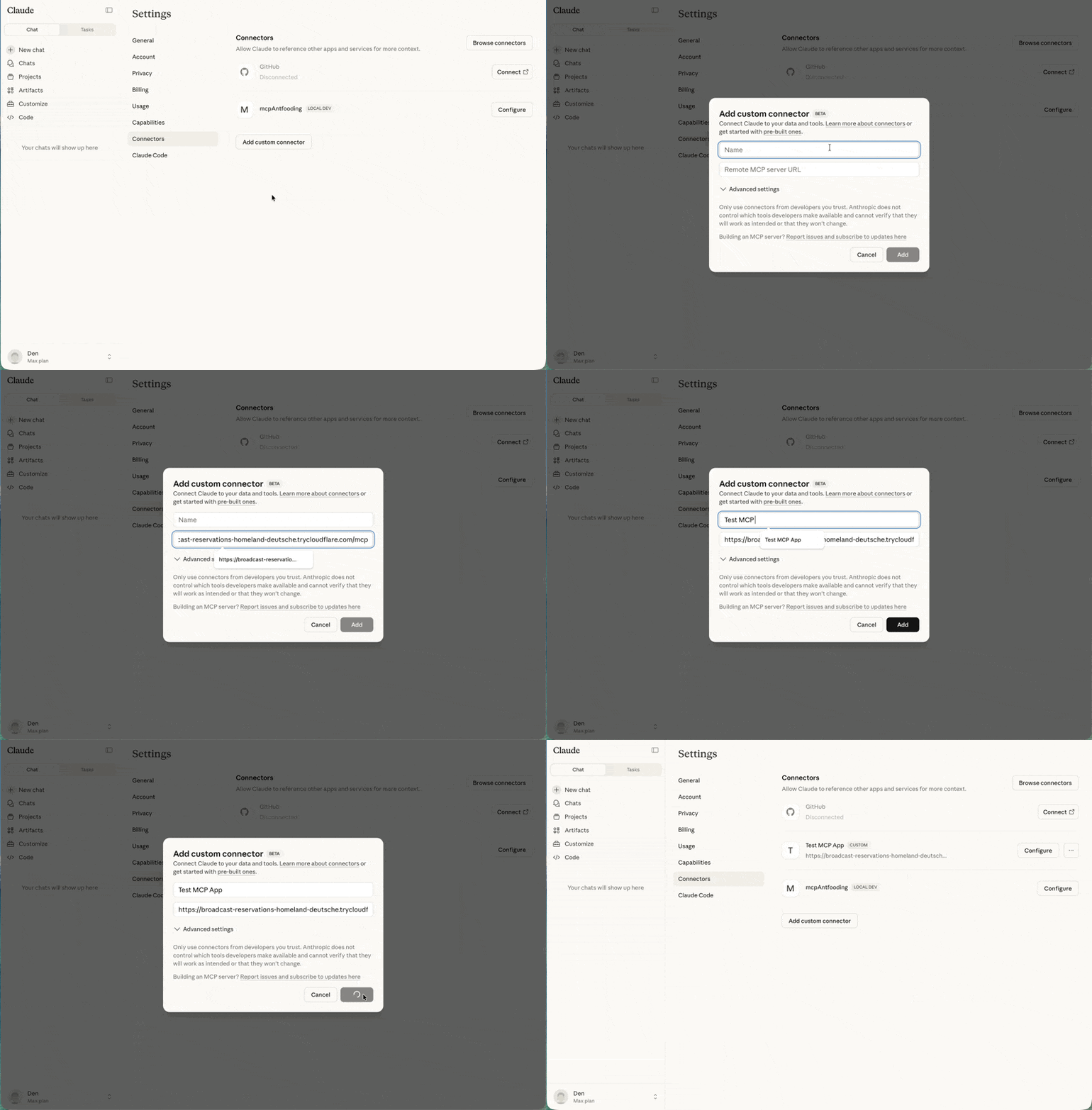
npx cloudflared tunnel --url http://localhost:3001复制生成的 URL(例如 https://random-name.trycloudflare.com),并在 Claude 中将其添加为自定义连接器
:点击个人资料,依次进入 Settings、Connectors,最后选择 Add custom connector。
使用 basic-host 测试
ext-apps 仓库包含用于开发的测试宿主。克隆仓库并安装依赖:
git clone https://github.com/modelcontextprotocol/ext-apps.git
cd ext-apps/examples/basic-host
npm install
git clone https://github.com/modelcontextprotocol/ext-apps.git
cd ext-apps\examples\basic-host
npm install在 ext-apps/examples/basic-host/ 中运行 npm start,将启动 basic-host 测试界面。要连接特定服务器,例如正在开发的服务器,请以内联方式传入 SERVERS 环境变量:
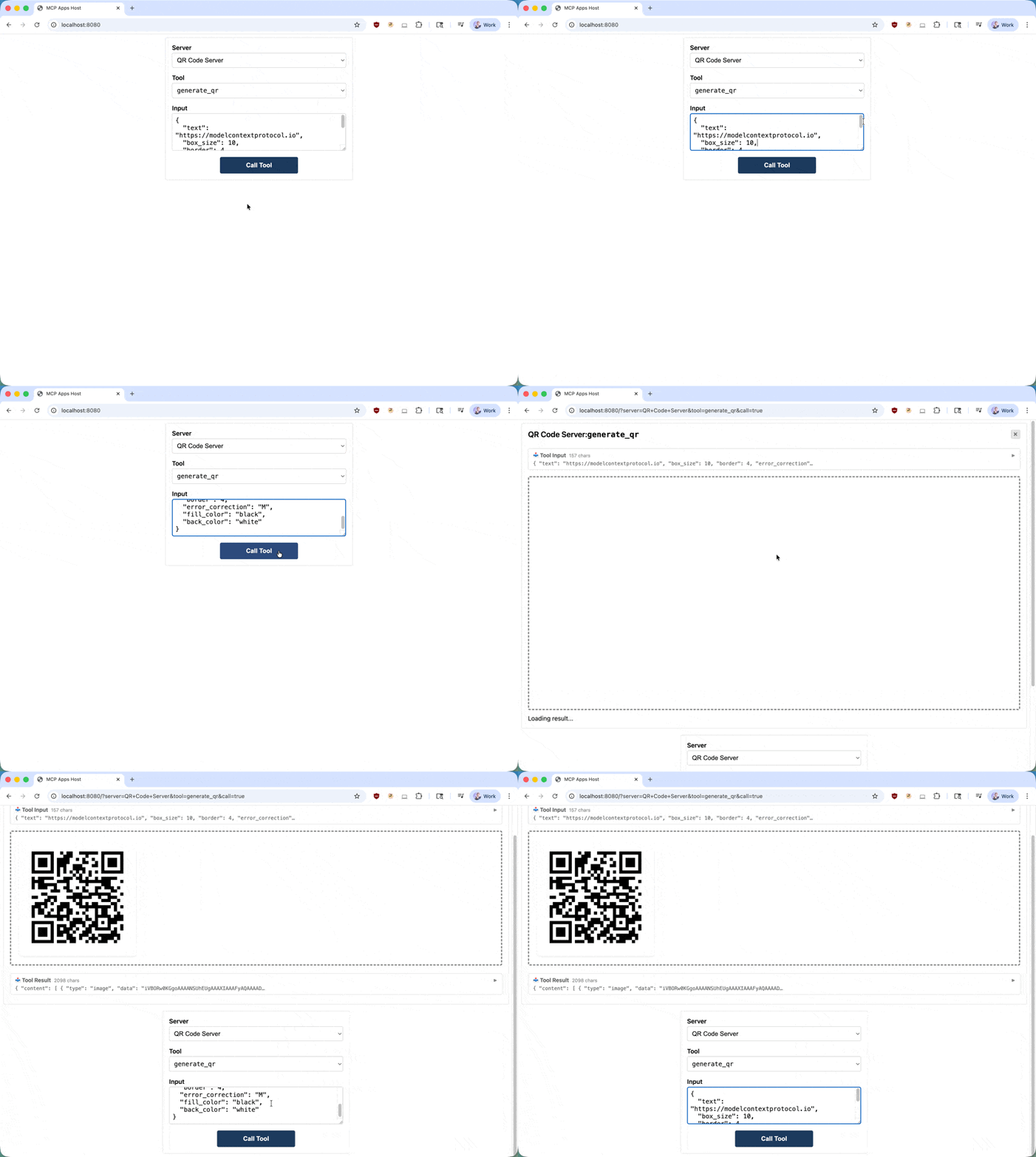
SERVERS='["http://localhost:3001/mcp"]' npm start$env:SERVERS='["http://localhost:3001/mcp"]'; npm start打开 http://localhost:8080。页面会显示一个简单界面,可以选择并调用工具。调用工具后,宿主会获取 UI 资源,并在沙箱 iframe 中呈现。随后即可与应用交互,并验证工具调用是否正常工作。
深入了解
API 文档
完整的 SDK 参考和 API 详情
GitHub 仓库
源代码、示例和问题跟踪
规范
面向实现者的技术规范
反馈
MCP Apps 仍在积极开发中。如果遇到问题或有改进建议,请在 GitHub 仓库 中提交 issue。若要广泛讨论扩展的发展方向,请加入 GitHub Discussions 中的交流。