Build an MCP server
In this tutorial, we’ll build a simple MCP weather server and connect it to a host, Claude for Desktop.
What we’ll be building
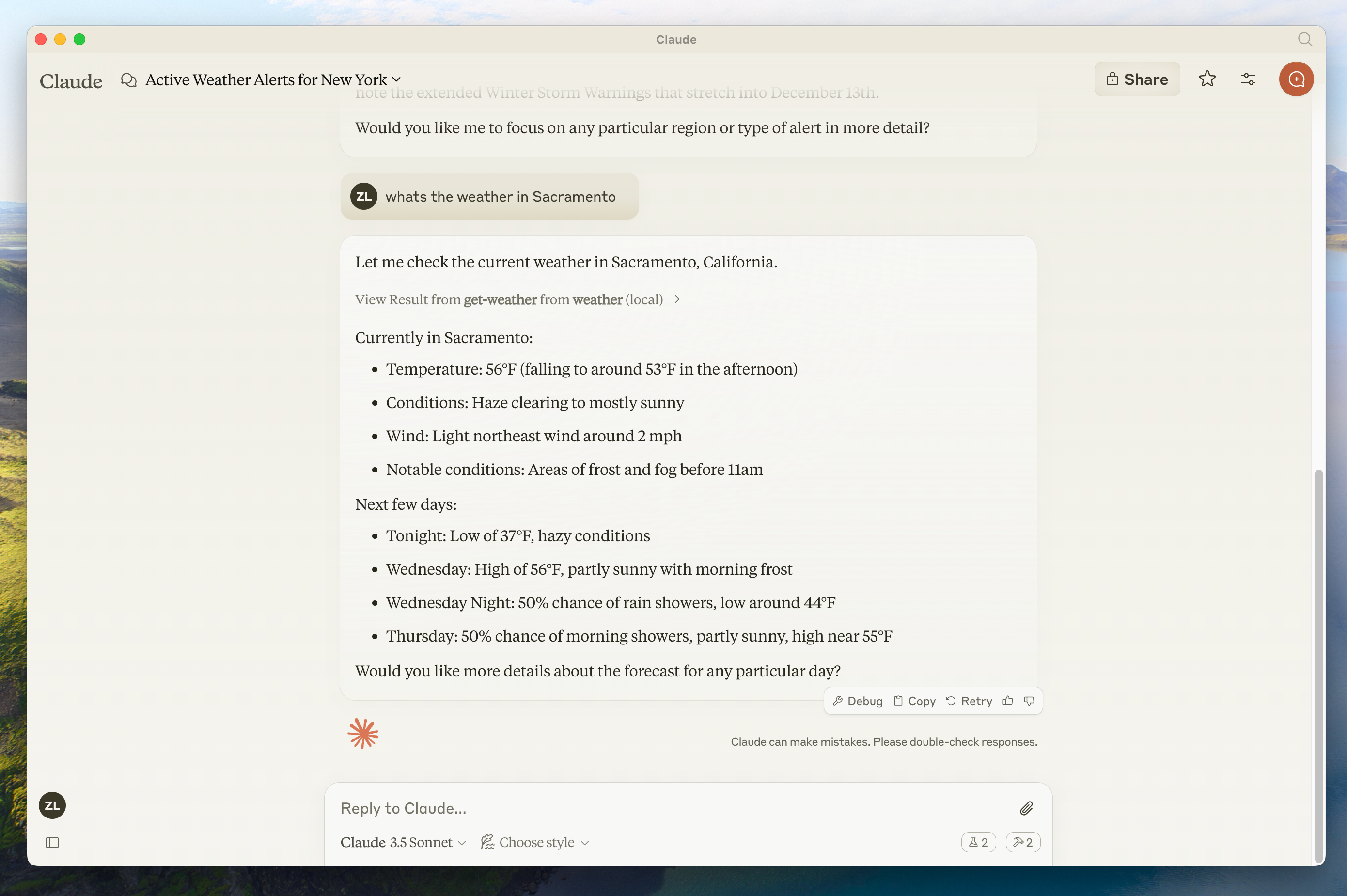
We’ll build a server that exposes two tools: get_alerts and get_forecast. Then we’ll connect the server to an MCP host (in this case, Claude for Desktop):
Core MCP Concepts
MCP servers can provide three main types of capabilities:
- Resources: File-like data that can be read by clients (like API responses or file contents)
- Tools: Functions that can be called by the LLM (with user approval)
- Prompts: Pre-written templates that help users accomplish specific tasks
This tutorial will primarily focus on tools.
Python
Let’s get started with building our weather server! You can find the complete code for what we’ll be building here.
Prerequisite knowledge
This quickstart assumes you have familiarity with:
- Python
- LLMs like Claude
Logging in MCP Servers
When implementing MCP servers, be careful about how you handle logging:
For STDIO-based servers: Never write to stdout. Writing to stdout will corrupt the JSON-RPC messages and break your server. The print() function writes to stdout by default, so keep it out of a STDIO server entirely.
For HTTP-based servers: Standard output logging is fine since it doesn’t interfere with HTTP responses.
Best Practices
- Use the standard library
loggingmodule, which writes to stderr. - Create one logger per module with
logging.getLogger(__name__)and call it from your tools.
Quick Examples
import logging

logger = logging.getLogger(__name__)

# ❌ Bad (STDIO)
print("Processing request")

# ✅ Good (STDIO)
logger.info("Processing request")  # writes to stderr
System requirements
- Python 3.10 or higher installed.
- You must use the Python MCP SDK 2.0.0 or higher.
Set up your environment
First, let’s install uv and set up our Python project and environment:
curl -LsSf https://astral.sh/uv/install.sh | shpowershell -ExecutionPolicy ByPass -c "irm https://astral.sh/uv/install.ps1 | iex"Make sure to restart your terminal afterwards to ensure that the uv command gets picked up.
Now, let’s create and set up our project:
# Create a new directory for our project
uv init weather
cd weather

# Create virtual environment and activate it
uv venv
source .venv/bin/activate

# Install dependencies
uv add "mcp[cli]"

# Create our server file
touch weather.py
# Create a new directory for our project
uv init weather
cd weather
# Create virtual environment and activate it
uv venv
.venv\Scripts\activate
# Install dependencies
uv add mcp[cli]
# Create our server file
new-item weather.pyNow let’s dive into building your server.
Building your server
Importing packages and setting up the instance
Add these to the top of your weather.py:
from typing import Any

import httpx2
from mcp.server import MCPServer

# Initialize MCPServer
mcp = MCPServer("weather")

# Constants
NWS_API_BASE = "https://api.weather.gov"
USER_AGENT = "weather-app/1.0"
httpx2 is the HTTP client the SDK itself depends on, so installing mcp already brought it in.
The MCPServer class uses Python type hints and docstrings to automatically generate tool definitions, making it easy to create and maintain MCP tools.
Helper functions
Next, let’s add our helper functions for querying and formatting the data from the National Weather Service API:
async def make_nws_request(url: str) -> dict[str, Any] | None:
    """Make a request to the NWS API with proper error handling."""
    headers = {"User-Agent": USER_AGENT, "Accept": "application/geo+json"}
    async with httpx2.AsyncClient() as client:
        try:
            response = await client.get(url, headers=headers, timeout=30.0)
            response.raise_for_status()
            return response.json()
        except Exception:
            return None


def format_alert(feature: dict) -> str:
    """Format an alert feature into a readable string."""
    props = feature["properties"]
    return f"""
Event: {props.get("event", "Unknown")}
Area: {props.get("areaDesc", "Unknown")}
Severity: {props.get("severity", "Unknown")}
Description: {props.get("description", "No description available")}
Instructions: {props.get("instruction", "No specific instructions provided")}
"""
Implementing tool execution
The tool execution handler is responsible for actually executing the logic of each tool. Let’s add it:
@mcp.tool()
async def get_alerts(state: str) -> str:
    """Get weather alerts for a US state.

    Args:
        state: Two-letter US state code (e.g. CA, NY)
    """
    url = f"{NWS_API_BASE}/alerts/active/area/{state}"
    data = await make_nws_request(url)

    if not data or "features" not in data:
        return "Unable to fetch alerts or no alerts found."

    if not data["features"]:
        return "No active alerts for this state."

    alerts = [format_alert(feature) for feature in data["features"]]
    return "\n---\n".join(alerts)


@mcp.tool()
async def get_forecast(latitude: float, longitude: float) -> str:
    """Get weather forecast for a location.

    Args:
        latitude: Latitude of the location
        longitude: Longitude of the location
    """
    # First get the forecast grid endpoint
    points_url = f"{NWS_API_BASE}/points/{latitude},{longitude}"
    points_data = await make_nws_request(points_url)

    if not points_data:
        return "Unable to fetch forecast data for this location."

    # Get the forecast URL from the points response
    forecast_url = points_data["properties"]["forecast"]
    forecast_data = await make_nws_request(forecast_url)

    if not forecast_data:
        return "Unable to fetch detailed forecast."

    # Format the periods into a readable forecast
    periods = forecast_data["properties"]["periods"]
    forecasts = []
    for period in periods[:5]:  # Only show next 5 periods
        forecast = f"""
{period["name"]}:
Temperature: {period["temperature"]}°{period["temperatureUnit"]}
Wind: {period["windSpeed"]} {period["windDirection"]}
Forecast: {period["detailedForecast"]}
"""
        forecasts.append(forecast)

    return "\n---\n".join(forecasts)
Running the server
Finally, let’s initialize and run the server:
if __name__ == "__main__":
    mcp.run(transport="stdio")
Your server is complete! Run uv run weather.py to start the MCP server, which will listen for messages from MCP hosts.
Let’s now test your server from an existing MCP host, Claude for Desktop.
Testing your server with Claude for Desktop
First, make sure you have Claude for Desktop installed. You can install the latest version here. If you already have Claude for Desktop, make sure it’s updated to the latest version.
We’ll need to configure Claude for Desktop for whichever MCP servers you want to use. To do this, open your Claude for Desktop App configuration at ~/Library/Application Support/Claude/claude_desktop_config.json in a text editor. Make sure to create the file if it doesn’t exist.
For example, if you have VS Code installed:
code ~/.config/Claude/claude_desktop_config.jsoncode ~/Library/Application\ Support/Claude/claude_desktop_config.jsoncode $env:AppData\Claude\claude_desktop_config.jsonYou’ll then add your servers in the mcpServers key. The MCP UI elements will only show up in Claude for Desktop if at least one server is properly configured.
In this case, we’ll add our single weather server like so:
{
  "mcpServers": {
    "weather": {
      "command": "uv",
      "args": [
        "--directory",
        "/ABSOLUTE/PATH/TO/PARENT/FOLDER/weather",
        "run",
        "weather.py"
      ]
    }
  }
}
{
"mcpServers": {
"weather": {
"command": "uv",
"args": [
"--directory",
"C:\\ABSOLUTE\\PATH\\TO\\PARENT\\FOLDER\\weather",
"run",
"weather.py"
]
}
}
}uv executable in the command field. You can get this by running which uv on macOS/Linux or where uv on Windows.pwd on macOS/Linux or cd on Windows Command Prompt. On Windows, remember to use double backslashes (\\) or forward slashes (/) in the JSON path.This tells Claude for Desktop:
- There’s an MCP server named “weather”
- To launch it by running
uv --directory /ABSOLUTE/PATH/TO/PARENT/FOLDER/weather run weather.py
Save the file, and restart Claude for Desktop.
TypeScript
Let’s get started with building our weather server! You can find the complete code for what we’ll be building here.
Prerequisite knowledge
This quickstart assumes you have familiarity with:
- TypeScript
- LLMs like Claude
Logging in MCP Servers
When implementing MCP servers, be careful about how you handle logging:
For STDIO-based servers: Never use console.log(), as it writes to standard output (stdout) by default. Writing to stdout will corrupt the JSON-RPC messages and break your server.
For HTTP-based servers: Standard output logging is fine since it doesn’t interfere with HTTP responses.
Best Practices
- Use
console.error()which writes to stderr, or use a logging library that writes to stderr or files.
Quick Examples
// ❌ Bad (STDIO)
console.log("Server started");

// ✅ Good (STDIO)
console.error("Server started"); // stderr is safe
System requirements
For TypeScript, make sure you have the latest version of Node installed.
Set up your environment
First, let’s install Node.js and npm if you haven’t already. You can download them from nodejs.org. Verify your Node.js installation:
node --version
npm --version
For this tutorial, you’ll need Node.js version 20 or higher.
Now, let’s create and set up our project:
# Create a new directory for our project
mkdir weather
cd weather

# Initialize a new npm project
npm init -y

# Install dependencies
npm install @modelcontextprotocol/server zod
npm install -D @types/node typescript

# Create our files
mkdir src
touch src/index.ts
# Create a new directory for our project
md weather
cd weather
# Initialize a new npm project
npm init -y
# Install dependencies
npm install @modelcontextprotocol/server zod
npm install -D @types/node typescript
# Create our files
md src
new-item src\index.tsUpdate your package.json to add type: “module” and a build script:
{
  "type": "module",
  "bin": {
    "weather": "./build/index.js"
  },
  "scripts": {
    "build": "tsc && chmod 755 build/index.js"
  },
  "files": ["build"]
}
Create a tsconfig.json in the root of your project:
{
  "compilerOptions": {
    "target": "ES2022",
    "module": "Node16",
    "moduleResolution": "Node16",
    "types": ["node"],
    "outDir": "./build",
    "rootDir": "./src",
    "strict": true,
    "esModuleInterop": true,
    "skipLibCheck": true,
    "forceConsistentCasingInFileNames": true
  },
  "include": ["src/**/*"],
  "exclude": ["node_modules"]
}
Now let’s dive into building your server.
Building your server
Importing packages and setting up constants
Add these to the top of your src/index.ts:
import { McpServer } from "@modelcontextprotocol/server";
import { serveStdio } from "@modelcontextprotocol/server/stdio";
import { z } from "zod";

const NWS_API_BASE = "https://api.weather.gov";
const USER_AGENT = "weather-app/1.0";
Helper functions
Next, let’s add our helper functions for querying and formatting the data from the National Weather Service API:
// Helper function for making NWS API requests
async function makeNWSRequest<T>(url: string): Promise<T | null> {
  const headers = {
    "User-Agent": USER_AGENT,
    Accept: "application/geo+json",
  };

  try {
    const response = await fetch(url, { headers });
    if (!response.ok) {
      throw new Error(`HTTP error! status: ${response.status}`);
    }
    return (await response.json()) as T;
  } catch (error) {
    console.error("Error making NWS request:", error);
    return null;
  }
}

interface AlertFeature {
  properties: {
    event?: string;
    areaDesc?: string;
    severity?: string;
    status?: string;
    headline?: string;
  };
}

// Format alert data
function formatAlert(feature: AlertFeature): string {
  const props = feature.properties;
  return [
    `Event: ${props.event || "Unknown"}`,
    `Area: ${props.areaDesc || "Unknown"}`,
    `Severity: ${props.severity || "Unknown"}`,
    `Status: ${props.status || "Unknown"}`,
    `Headline: ${props.headline || "No headline"}`,
    "---",
  ].join("\n");
}

interface ForecastPeriod {
  name?: string;
  temperature?: number;
  temperatureUnit?: string;
  windSpeed?: string;
  windDirection?: string;
  shortForecast?: string;
}

interface AlertsResponse {
  features: AlertFeature[];
}

interface PointsResponse {
  properties: {
    forecast?: string;
  };
}

interface ForecastResponse {
  properties: {
    periods: ForecastPeriod[];
  };
}
Implementing tool execution
The tool execution handler is responsible for actually executing the logic of each tool. Let’s add it, inside a createServer() function that builds the server instance and registers both tools on it:
// Build a server instance and register its tools. serveStdio calls this
// whenever it needs an instance, so every call must return a fresh one.
function createServer() {
  const server = new McpServer({
    name: "weather",
    version: "1.0.0",
  });

  server.registerTool(
    "get_alerts",
    {
      description: "Get weather alerts for a state",
      inputSchema: z.object({
        state: z
          .string()
          .length(2)
          .describe("Two-letter state code (e.g. CA, NY)"),
      }),
    },
    async ({ state }) => {
      const stateCode = state.toUpperCase();
      const alertsUrl = `${NWS_API_BASE}/alerts?area=${stateCode}`;
      const alertsData = await makeNWSRequest<AlertsResponse>(alertsUrl);

      if (!alertsData) {
        return {
          content: [
            {
              type: "text",
              text: "Failed to retrieve alerts data",
            },
          ],
        };
      }

      const features = alertsData.features || [];
      if (!features.length) {
        return {
          content: [
            {
              type: "text",
              text: `No active alerts for ${stateCode}`,
            },
          ],
        };
      }

      const formattedAlerts = features.map(formatAlert);
      const alertsText = `Active alerts for ${stateCode}:\n\n${formattedAlerts.join("\n")}`;

      return {
        content: [
          {
            type: "text",
            text: alertsText,
          },
        ],
      };
    },
  );

  server.registerTool(
    "get_forecast",
    {
      description: "Get weather forecast for a location",
      inputSchema: z.object({
        latitude: z
          .number()
          .min(-90)
          .max(90)
          .describe("Latitude of the location"),
        longitude: z
          .number()
          .min(-180)
          .max(180)
          .describe("Longitude of the location"),
      }),
    },
    async ({ latitude, longitude }) => {
      // Get grid point data
      const pointsUrl = `${NWS_API_BASE}/points/${latitude.toFixed(4)},${longitude.toFixed(4)}`;
      const pointsData = await makeNWSRequest<PointsResponse>(pointsUrl);

      if (!pointsData) {
        return {
          content: [
            {
              type: "text",
              text: `Failed to retrieve grid point data for coordinates: ${latitude}, ${longitude}. This location may not be supported by the NWS API (only US locations are supported).`,
            },
          ],
        };
      }

      const forecastUrl = pointsData.properties?.forecast;
      if (!forecastUrl) {
        return {
          content: [
            {
              type: "text",
              text: "Failed to get forecast URL from grid point data",
            },
          ],
        };
      }

      // Get forecast data
      const forecastData = await makeNWSRequest<ForecastResponse>(forecastUrl);
      if (!forecastData) {
        return {
          content: [
            {
              type: "text",
              text: "Failed to retrieve forecast data",
            },
          ],
        };
      }

      const periods = forecastData.properties?.periods || [];
      if (periods.length === 0) {
        return {
          content: [
            {
              type: "text",
              text: "No forecast periods available",
            },
          ],
        };
      }

      // Format forecast periods
      const formattedForecast = periods.map((period: ForecastPeriod) =>
        [
          `${period.name || "Unknown"}:`,
          `Temperature: ${period.temperature || "Unknown"}°${period.temperatureUnit || "F"}`,
          `Wind: ${period.windSpeed || "Unknown"} ${period.windDirection || ""}`,
          `${period.shortForecast || "No forecast available"}`,
          "---",
        ].join("\n"),
      );

      const forecastText = `Forecast for ${latitude}, ${longitude}:\n\n${formattedForecast.join("\n")}`;

      return {
        content: [
          {
            type: "text",
            text: forecastText,
          },
        ],
      };
    },
  );

  return server;
}
Running the server
Finally, serve the server over stdio:
serveStdio(createServer, {
  onerror: (error) => console.error("Weather MCP Server error:", error),
});
console.error("Weather MCP Server running on stdio");
serveStdio negotiates the protocol revision with each client, so the same server answers both 2026-07-28 clients and clients that still open with the 2025-era initialize handshake. It calls createServer() whenever it needs an instance, including once for a server/discover probe that is discarded if the client falls back to initialize, which is why the factory returns a new McpServer on every call. Wiring the server by hand with server.connect(new StdioServerTransport()) still compiles, but a server started that way only serves 2025-era clients.
Make sure to run npm run build to build your server! This is a very important step in getting your server to connect.
To check that the server answers 2026-07-28 clients, list its tools with the Inspector CLI in the modern protocol era:
npx @modelcontextprotocol/inspector --cli node build/index.js --protocol-era modern --method tools/listThe Inspector defaults to the legacy era, which only exercises the 2025-era handshake, so run the same command once more with --protocol-era legacy. Both runs list get_alerts and get_forecast.
Let’s now test your server from an existing MCP host, Claude for Desktop.
Testing your server with Claude for Desktop
First, make sure you have Claude for Desktop installed. You can install the latest version here. If you already have Claude for Desktop, make sure it’s updated to the latest version.
We’ll need to configure Claude for Desktop for whichever MCP servers you want to use. To do this, open your Claude for Desktop App configuration at ~/Library/Application Support/Claude/claude_desktop_config.json in a text editor. Make sure to create the file if it doesn’t exist.
For example, if you have VS Code installed:
code ~/.config/Claude/claude_desktop_config.jsoncode ~/Library/Application\ Support/Claude/claude_desktop_config.jsoncode $env:AppData\Claude\claude_desktop_config.jsonYou’ll then add your servers in the mcpServers key. The MCP UI elements will only show up in Claude for Desktop if at least one server is properly configured.
In this case, we’ll add our single weather server like so:
{
  "mcpServers": {
    "weather": {
      "command": "node",
      "args": ["/ABSOLUTE/PATH/TO/PARENT/FOLDER/weather/build/index.js"]
    }
  }
}
{
"mcpServers": {
"weather": {
"command": "node",
"args": ["C:\\PATH\\TO\\PARENT\\FOLDER\\weather\\build\\index.js"]
}
}
}This tells Claude for Desktop:
- There’s an MCP server named “weather”
- Launch it by running
node /ABSOLUTE/PATH/TO/PARENT/FOLDER/weather/build/index.js
Save the file, and restart Claude for Desktop.
Java
Let’s get started with building our weather server! You can find the complete code for what we’ll be building here.
For more information, see the MCP Server Boot Starter reference documentation. For manual MCP Server implementation, refer to the MCP Server Java SDK documentation.
Logging in MCP Servers
When implementing MCP servers, be careful about how you handle logging:
For STDIO-based servers: Never use System.out.println() or System.out.print(), as they write to standard output (stdout). Writing to stdout will corrupt the JSON-RPC messages and break your server.
For HTTP-based servers: Standard output logging is fine since it doesn’t interfere with HTTP responses.
Best Practices
- Use a logging library that writes to stderr or files.
- Ensure any configured logging library will not write to stdout.
System requirements
- Java 17 or higher installed.
- Spring Boot 3.3.x or higher
Set up your environment
Use the Spring Initializer to bootstrap the project.
You will need to add the following dependencies:
<dependencies>
      <dependency>
          <groupId>org.springframework.ai</groupId>
          <artifactId>spring-ai-starter-mcp-server</artifactId>
      </dependency>

      <dependency>
          <groupId>org.springframework</groupId>
          <artifactId>spring-web</artifactId>
      </dependency>
</dependencies>
dependencies {
implementation platform("org.springframework.ai:spring-ai-starter-mcp-server")
implementation platform("org.springframework:spring-web")
}Then configure your application by setting the application properties:
spring.main.bannerMode=off
logging.pattern.console=logging:
pattern:
console:
spring:
main:
banner-mode: offThe Server Configuration Properties documents all available properties.
Now let’s dive into building your server.
Building your server
Weather Service
Let’s implement a WeatherService.java that uses a REST client to query the data from the National Weather Service API:
@Service
public class WeatherService {

	private final RestClient restClient;

	public WeatherService() {
		this.restClient = RestClient.builder()
			.baseUrl("https://api.weather.gov")
			.defaultHeader("Accept", "application/geo+json")
			.defaultHeader("User-Agent", "WeatherApiClient/1.0 ([email protected])")
			.build();
	}

  @Tool(description = "Get weather forecast for a specific latitude/longitude")
  public String getWeatherForecastByLocation(
      double latitude,   // Latitude coordinate
      double longitude   // Longitude coordinate
  ) {
      // Returns detailed forecast including:
      // - Temperature and unit
      // - Wind speed and direction
      // - Detailed forecast description
  }

  @Tool(description = "Get weather alerts for a US state")
  public String getAlerts(
      @ToolParam(description = "Two-letter US state code (e.g. CA, NY)") String state
  ) {
      // Returns active alerts including:
      // - Event type
      // - Affected area
      // - Severity
      // - Description
      // - Safety instructions
  }

  // ......
}
The @Service annotation will auto-register the service in your application context.
The Spring AI @Tool annotation makes it easy to create and maintain MCP tools.
The auto-configuration will automatically register these tools with the MCP server.
Create your Boot Application
@SpringBootApplication
public class McpServerApplication {

	public static void main(String[] args) {
		SpringApplication.run(McpServerApplication.class, args);
	}

	@Bean
	public ToolCallbackProvider weatherTools(WeatherService weatherService) {
		return  MethodToolCallbackProvider.builder().toolObjects(weatherService).build();
	}
}
Uses the MethodToolCallbackProvider utils to convert the @Tools into actionable callbacks used by the MCP server.
Running the server
Finally, let’s build the server:
./mvnw clean installThis will generate an mcp-weather-stdio-server-0.0.1-SNAPSHOT.jar file within the target folder.
Let’s now test your server from an existing MCP host, Claude for Desktop.
Testing your server with Claude for Desktop
First, make sure you have Claude for Desktop installed. You can install the latest version here. If you already have Claude for Desktop, make sure it’s updated to the latest version.
We’ll need to configure Claude for Desktop for whichever MCP servers you want to use.
To do this, open your Claude for Desktop App configuration at ~/Library/Application Support/Claude/claude_desktop_config.json in a text editor.
Make sure to create the file if it doesn’t exist.
For example, if you have VS Code installed:
code ~/.config/Claude/claude_desktop_config.jsoncode ~/Library/Application\ Support/Claude/claude_desktop_config.jsoncode $env:AppData\Claude\claude_desktop_config.jsonYou’ll then add your servers in the mcpServers key.
The MCP UI elements will only show up in Claude for Desktop if at least one server is properly configured.
In this case, we’ll add our single weather server like so:
{
  "mcpServers": {
    "spring-ai-mcp-weather": {
      "command": "java",
      "args": [
        "-Dspring.ai.mcp.server.stdio=true",
        "-jar",
        "/ABSOLUTE/PATH/TO/PARENT/FOLDER/mcp-weather-stdio-server-0.0.1-SNAPSHOT.jar"
      ]
    }
  }
}
{
"mcpServers": {
"spring-ai-mcp-weather": {
"command": "java",
"args": [
"-Dspring.ai.mcp.server.transport=STDIO",
"-jar",
"C:\\ABSOLUTE\\PATH\\TO\\PARENT\\FOLDER\\weather\\mcp-weather-stdio-server-0.0.1-SNAPSHOT.jar"
]
}
}
}This tells Claude for Desktop:
- There’s an MCP server named “my-weather-server”
- To launch it by running
java -jar /ABSOLUTE/PATH/TO/PARENT/FOLDER/mcp-weather-stdio-server-0.0.1-SNAPSHOT.jar
Save the file, and restart Claude for Desktop.
Testing your server with Java client
Create an MCP Client manually
Use the McpClient to connect to the server:
var stdioParams = ServerParameters.builder("java")
  .args("-jar", "/ABSOLUTE/PATH/TO/PARENT/FOLDER/mcp-weather-stdio-server-0.0.1-SNAPSHOT.jar")
  .build();

var stdioTransport = new StdioClientTransport(stdioParams);

var mcpClient = McpClient.sync(stdioTransport).build();

mcpClient.initialize();

ListToolsResult toolsList = mcpClient.listTools();

CallToolResult weather = mcpClient.callTool(
  new CallToolRequest("getWeatherForecastByLocation",
      Map.of("latitude", "47.6062", "longitude", "-122.3321")));

CallToolResult alert = mcpClient.callTool(
  new CallToolRequest("getAlerts", Map.of("state", "NY")));

mcpClient.closeGracefully();
Use MCP Client Boot Starter
Create a new boot starter application using the spring-ai-starter-mcp-client dependency:
<dependency>
    <groupId>org.springframework.ai</groupId>
    <artifactId>spring-ai-starter-mcp-client</artifactId>
</dependency>
and set the spring.ai.mcp.client.stdio.servers-configuration property to point to your claude_desktop_config.json.
You can reuse the existing Anthropic Desktop configuration:
spring.ai.mcp.client.stdio.servers-configuration=file:PATH/TO/claude_desktop_config.jsonWhen you start your client application, the auto-configuration will automatically create MCP clients from the claude_desktop_config.json.
For more information, see the MCP Client Boot Starters reference documentation.
More Java MCP Server examples
The starter-webflux-server demonstrates how to create an HTTP-based MCP server with the WebFlux starter.
Set the spring.ai.mcp.server.protocol=STREAMABLE property to serve it over Streamable HTTP.
It showcases how to define and register MCP Tools, Resources, and Prompts, using the Spring Boot’s auto-configuration capabilities.
Kotlin
Let’s get started with building our weather server! You can find the complete code for what we’ll be building here.
Prerequisite knowledge
This quickstart assumes you have familiarity with:
- Kotlin
- LLMs like Claude
Logging in MCP Servers
When implementing MCP servers, be careful about how you handle logging:
For STDIO-based servers: Never use println(), as it writes to standard output (stdout) by default. Writing to stdout will corrupt the JSON-RPC messages and break your server.
For HTTP-based servers: Standard output logging is fine since it doesn’t interfere with HTTP responses.
Best Practices
- Use a logging library that writes to stderr or files.
System requirements
- JDK 11 or higher installed.
Set up your environment
First, let’s install java and gradle if you haven’t already.
You can download java from official Oracle JDK website.
Verify your java installation:
java --versionNow, let’s create and set up your project:
# Create a new directory for our project
mkdir weather
cd weather

# Initialize a new kotlin project
gradle init
# Create a new directory for our project
md weather
cd weather
# Initialize a new kotlin project
gradle initAfter running gradle init, select Application as the project type, Kotlin as the programming language.
Alternatively, you can create a Kotlin application using the IntelliJ IDEA project wizard.
After creating the project, replace the contents of your build.gradle.kts with:
// Check latest versions at https://github.com/modelcontextprotocol/kotlin-sdk/releases
val mcpVersion = "0.9.0"
val ktorVersion = "3.2.3"
val slf4jVersion = "2.0.17"

plugins {
    kotlin("jvm") version "2.3.20"
    kotlin("plugin.serialization") version "2.3.20"
    id("com.gradleup.shadow") version "8.3.9"
    application
}

application {
    mainClass.set("MainKt")
}

dependencies {
    implementation("io.modelcontextprotocol:kotlin-sdk:$mcpVersion")
    implementation("io.ktor:ktor-client-content-negotiation:$ktorVersion")
    implementation("io.ktor:ktor-serialization-kotlinx-json:$ktorVersion")
    implementation("io.ktor:ktor-client-cio:$ktorVersion")
    implementation("org.slf4j:slf4j-simple:$slf4jVersion")
}
Verify that everything is set up correctly:
./gradlew buildNow let’s dive into building your server.
Building your server
Setting up the instance
Add a server initialization function:
fun runMcpServer() {
    val server = Server(
        Implementation(
            name = "weather",
            version = "1.0.0",
        ),
        ServerOptions(
            capabilities = ServerCapabilities(tools = ServerCapabilities.Tools(listChanged = true)),
        ),
    )

    // register tools on server here

    val transport = StdioServerTransport(
        System.`in`.asInput(),
        System.out.asSink().buffered(),
    )

    runBlocking {
        val session = server.createSession(transport)
        val done = Job()
        session.onClose {
            done.complete()
        }
        done.join()
    }
}
Weather API helper functions
Next, let’s add functions and data classes for querying and converting responses from the National Weather Service API:
val httpClient = HttpClient(CIO) {
    defaultRequest {
        url("https://api.weather.gov")
        headers {
            append("Accept", "application/geo+json")
            append("User-Agent", "WeatherApiClient/1.0")
        }
        contentType(ContentType.Application.Json)
    }
    install(ContentNegotiation) {
        json(Json { ignoreUnknownKeys = true })
    }
}

// Extension function to fetch weather alerts for a given state
suspend fun HttpClient.getAlerts(state: String): List<String> {
    val alerts = this.get("/alerts/active/area/$state").body<AlertsResponse>()
    return alerts.features.map { feature ->
        """
            Event: ${feature.properties.event}
            Area: ${feature.properties.areaDesc}
            Severity: ${feature.properties.severity}
            Status: ${feature.properties.status}
            Headline: ${feature.properties.headline}
        """.trimIndent()
    }
}

// Extension function to fetch forecast information for given latitude and longitude
suspend fun HttpClient.getForecast(latitude: Double, longitude: Double): List<String> {
    val points = this.get("/points/$latitude,$longitude").body<PointsResponse>()
    val forecastUrl = points.properties.forecast ?: error("No forecast URL available")
    val forecast = this.get(forecastUrl).body<ForecastResponse>()
    return forecast.properties.periods.map { period ->
        """
            ${period.name}:
            Temperature: ${period.temperature}°${period.temperatureUnit}
            Wind: ${period.windSpeed} ${period.windDirection}
            ${period.shortForecast}
        """.trimIndent()
    }
}

@Serializable
data class PointsResponse(val properties: PointsProperties)

@Serializable
data class PointsProperties(val forecast: String? = null)

@Serializable
data class ForecastResponse(val properties: ForecastProperties)

@Serializable
data class ForecastProperties(val periods: List<ForecastPeriod> = emptyList())

@Serializable
data class ForecastPeriod(
    val name: String? = null,
    val temperature: Int? = null,
    val temperatureUnit: String? = null,
    val windSpeed: String? = null,
    val windDirection: String? = null,
    val shortForecast: String? = null,
)

@Serializable
data class AlertsResponse(val features: List<AlertFeature> = emptyList())

@Serializable
data class AlertFeature(val properties: AlertProperties)

@Serializable
data class AlertProperties(
    val event: String? = null,
    val areaDesc: String? = null,
    val severity: String? = null,
    val status: String? = null,
    val headline: String? = null,
)
Implementing tool execution
The tool execution handler is responsible for actually executing the logic of each tool. Let’s add it:
// Register weather tools

server.addTool(
    name = "get_alerts",
    description = "Get weather alerts for a US state. Input is a two-letter US state code (e.g. CA, NY)",
    inputSchema = ToolSchema(
        properties = buildJsonObject {
            putJsonObject("state") {
                put("type", "string")
                put("description", "Two-letter US state code (e.g. CA, NY)")
            }
        },
        required = listOf("state"),
    ),
) { request ->
    val state = request.arguments?.get("state")?.jsonPrimitive?.content
        ?: return@addTool CallToolResult(
            content = listOf(TextContent("The 'state' parameter is required.")),
        )

    val alerts = httpClient.getAlerts(state)
    CallToolResult(content = alerts.map { TextContent(it) })
}

server.addTool(
    name = "get_forecast",
    description = "Get weather forecast for a location. Note: only US locations are supported by the NWS API.",
    inputSchema = ToolSchema(
        properties = buildJsonObject {
            putJsonObject("latitude") {
                put("type", "number")
                put("description", "Latitude of the location")
            }
            putJsonObject("longitude") {
                put("type", "number")
                put("description", "Longitude of the location")
            }
        },
        required = listOf("latitude", "longitude"),
    ),
) { request ->
    val latitude = request.arguments?.get("latitude")?.jsonPrimitive?.doubleOrNull
    val longitude = request.arguments?.get("longitude")?.jsonPrimitive?.doubleOrNull
    if (latitude == null || longitude == null) {
        return@addTool CallToolResult(
            content = listOf(TextContent("The 'latitude' and 'longitude' parameters are required.")),
        )
    }

    val forecast = httpClient.getForecast(latitude, longitude)
    CallToolResult(content = forecast.map { TextContent(it) })
}
Running the server
Finally, implement the main function to run the server:
fun main() = runMcpServer()You can run the server directly during development:
./gradlew runFor production use, build the shadow JAR:
./gradlew build
java -jar build/libs/weather-0.1.0-all.jar
Let’s now test your server from an existing MCP host, Claude for Desktop.
Testing your server with Claude for Desktop
First, make sure you have Claude for Desktop installed. You can install the latest version here. If you already have Claude for Desktop, make sure it’s updated to the latest version.
We’ll need to configure Claude for Desktop for whichever MCP servers you want to use.
To do this, open your Claude for Desktop App configuration at ~/Library/Application Support/Claude/claude_desktop_config.json in a text editor.
Make sure to create the file if it doesn’t exist.
For example, if you have VS Code installed:
code ~/.config/Claude/claude_desktop_config.jsoncode ~/Library/Application\ Support/Claude/claude_desktop_config.jsoncode $env:AppData\Claude\claude_desktop_config.jsonYou’ll then add your servers in the mcpServers key.
The MCP UI elements will only show up in Claude for Desktop if at least one server is properly configured.
In this case, we’ll add our single weather server like so:
{
  "mcpServers": {
    "weather": {
      "command": "java",
      "args": [
        "-jar",
        "/ABSOLUTE/PATH/TO/PARENT/FOLDER/weather/build/libs/weather-0.1.0-all.jar"
      ]
    }
  }
}
{
"mcpServers": {
"weather": {
"command": "java",
"args": [
"-jar",
"C:\\PATH\\TO\\PARENT\\FOLDER\\weather\\build\\libs\\weather-0.1.0-all.jar"
]
}
}
}This tells Claude for Desktop:
- There’s an MCP server named “weather”
- Launch it by running
java -jar /ABSOLUTE/PATH/TO/PARENT/FOLDER/weather/build/libs/weather-0.1.0-all.jar
Save the file, and restart Claude for Desktop.
C#
Let’s get started with building our weather server! You can find the complete code for what we’ll be building here.
Prerequisite knowledge
This quickstart assumes you have familiarity with:
- C#
- LLMs like Claude
- .NET 8 or higher
Logging in MCP Servers
When implementing MCP servers, be careful about how you handle logging:
For STDIO-based servers: Never use Console.WriteLine() or Console.Write(), as they write to standard output (stdout). Writing to stdout will corrupt the JSON-RPC messages and break your server.
For HTTP-based servers: Standard output logging is fine since it doesn’t interfere with HTTP responses.
Best Practices
- Use a logging library that writes to stderr or files.
System requirements
- .NET 8 SDK or higher installed.
Set up your environment
First, let’s install dotnet if you haven’t already. You can download dotnet from official Microsoft .NET website. Verify your dotnet installation:
dotnet --versionNow, let’s create and set up your project:
# Create a new directory for our project
mkdir weather
cd weather
# Initialize a new C# project
dotnet new console
# Create a new directory for our project
mkdir weather
cd weather
# Initialize a new C# project
dotnet new consoleAfter running dotnet new console, you will be presented with a new C# project.
You can open the project in your favorite IDE, such as Visual Studio or Rider.
Alternatively, you can create a C# application using the Visual Studio project wizard.
After creating the project, add NuGet package for the Model Context Protocol SDK and hosting:
# Add the Model Context Protocol SDK NuGet package
dotnet add package ModelContextProtocol --prerelease
# Add the .NET Hosting NuGet package
dotnet add package Microsoft.Extensions.Hosting
Now let’s dive into building your server.
Building your server
Open the Program.cs file in your project and replace its contents with the following code:
using Microsoft.Extensions.DependencyInjection;
using Microsoft.Extensions.Hosting;
using ModelContextProtocol;
using System.Net.Http.Headers;

var builder = Host.CreateEmptyApplicationBuilder(settings: null);

builder.Services.AddMcpServer()
    .WithStdioServerTransport()
    .WithToolsFromAssembly();

builder.Services.AddSingleton(_ =>
{
    var client = new HttpClient() { BaseAddress = new Uri("https://api.weather.gov") };
    client.DefaultRequestHeaders.UserAgent.Add(new ProductInfoHeaderValue("weather-tool", "1.0"));
    return client;
});

var app = builder.Build();

await app.RunAsync();ApplicationHostBuilder, ensure you use CreateEmptyApplicationBuilder instead of CreateDefaultBuilder. This ensures that the server does not write any additional messages to the console. This is only necessary for servers using STDIO transport.This code sets up a basic console application that uses the Model Context Protocol SDK to create an MCP server with standard I/O transport.
Weather API helper functions
Create an extension class for HttpClient which helps simplify JSON request handling:
using System.Text.Json;

internal static class HttpClientExt
{
    public static async Task<JsonDocument> ReadJsonDocumentAsync(this HttpClient client, string requestUri)
    {
        using var response = await client.GetAsync(requestUri);
        response.EnsureSuccessStatusCode();
        return await JsonDocument.ParseAsync(await response.Content.ReadAsStreamAsync());
    }
}
Next, define a class with the tool execution handlers for querying and converting responses from the National Weather Service API:
using ModelContextProtocol.Server;
using System.ComponentModel;
using System.Globalization;
using System.Text.Json;

namespace QuickstartWeatherServer.Tools;

[McpServerToolType]
public static class WeatherTools
{
    [McpServerTool, Description("Get weather alerts for a US state code.")]
    public static async Task<string> GetAlerts(
        HttpClient client,
        [Description("The US state code to get alerts for.")] string state)
    {
        using var jsonDocument = await client.ReadJsonDocumentAsync($"/alerts/active/area/{state}");
        var jsonElement = jsonDocument.RootElement;
        var alerts = jsonElement.GetProperty("features").EnumerateArray();

        if (!alerts.Any())
        {
            return "No active alerts for this state.";
        }

        return string.Join("\n--\n", alerts.Select(alert =>
        {
            JsonElement properties = alert.GetProperty("properties");
            return $"""
                    Event: {properties.GetProperty("event").GetString()}
                    Area: {properties.GetProperty("areaDesc").GetString()}
                    Severity: {properties.GetProperty("severity").GetString()}
                    Description: {properties.GetProperty("description").GetString()}
                    Instruction: {properties.GetProperty("instruction").GetString()}
                    """;
        }));
    }

    [McpServerTool, Description("Get weather forecast for a location.")]
    public static async Task<string> GetForecast(
        HttpClient client,
        [Description("Latitude of the location.")] double latitude,
        [Description("Longitude of the location.")] double longitude)
    {
        var pointUrl = string.Create(CultureInfo.InvariantCulture, $"/points/{latitude},{longitude}");
        using var jsonDocument = await client.ReadJsonDocumentAsync(pointUrl);
        var forecastUrl = jsonDocument.RootElement.GetProperty("properties").GetProperty("forecast").GetString()
            ?? throw new Exception($"No forecast URL provided by {client.BaseAddress}points/{latitude},{longitude}");

        using var forecastDocument = await client.ReadJsonDocumentAsync(forecastUrl);
        var periods = forecastDocument.RootElement.GetProperty("properties").GetProperty("periods").EnumerateArray();

        return string.Join("\n---\n", periods.Select(period => $"""
                {period.GetProperty("name").GetString()}
                Temperature: {period.GetProperty("temperature").GetInt32()}°F
                Wind: {period.GetProperty("windSpeed").GetString()} {period.GetProperty("windDirection").GetString()}
                Forecast: {period.GetProperty("detailedForecast").GetString()}
                """));
    }
}
Running the server
Finally, run the server using the following command:
dotnet runThis will start the server and listen for incoming requests on standard input/output.
Testing your server with Claude for Desktop
First, make sure you have Claude for Desktop installed. You can install the latest version
here. If you already have Claude for Desktop, make sure it’s updated to the latest version.
We’ll need to configure Claude for Desktop for whichever MCP servers you want to use. To do this, open your Claude for Desktop App configuration at ~/Library/Application Support/Claude/claude_desktop_config.json in a text editor. Make sure to create the file if it doesn’t exist.
For example, if you have VS Code installed:
code ~/.config/Claude/claude_desktop_config.jsoncode ~/Library/Application\ Support/Claude/claude_desktop_config.jsoncode $env:AppData\Claude\claude_desktop_config.jsonYou’ll then add your servers in the mcpServers key. The MCP UI elements will only show up in Claude for Desktop if at least one server is properly configured.
In this case, we’ll add our single weather server like so:
{
  "mcpServers": {
    "weather": {
      "command": "dotnet",
      "args": ["run", "--project", "/ABSOLUTE/PATH/TO/PROJECT", "--no-build"]
    }
  }
}
{
"mcpServers": {
"weather": {
"command": "dotnet",
"args": [
"run",
"--project",
"C:\\ABSOLUTE\\PATH\\TO\\PROJECT",
"--no-build"
]
}
}
}This tells Claude for Desktop:
- There’s an MCP server named “weather”
- Launch it by running
dotnet run /ABSOLUTE/PATH/TO/PROJECTSave the file, and restart Claude for Desktop.
Ruby
Let’s get started with building our weather server! You can find the complete code for what we’ll be building here.
Prerequisite knowledge
This quickstart assumes you have familiarity with:
- Ruby
- LLMs like Claude
Logging in MCP Servers
When implementing MCP servers, be careful about how you handle logging:
For STDIO-based servers: Never use puts or print, as they write to standard output (stdout) by default. Writing to stdout will corrupt the JSON-RPC messages and break your server.
For HTTP-based servers: Standard output logging is fine since it doesn’t interfere with HTTP responses.
Best Practices
- Use a logging library that writes to stderr or files.
Quick Examples
# ❌ Bad (STDIO)
puts "Processing request"

# ✅ Good (STDIO)
require "logger"
logger = Logger.new($stderr)
logger.info("Processing request")
System requirements
- Ruby 2.7 or higher installed.
Set up your environment
First, let’s make sure you have Ruby installed. You can check by running:
ruby --versionNow, let’s create and set up our project:
# Create a new directory for our project
mkdir weather
cd weather

# Create a Gemfile
bundle init

# Add the MCP SDK dependency
bundle add mcp

# Create our server file
touch weather.rb
# Create a new directory for our project
mkdir weather
cd weather
# Create a Gemfile
bundle init
# Add the MCP SDK dependency
bundle add mcp
# Create our server file
new-item weather.rbNow let’s dive into building your server.
Building your server
Importing packages and setting up constants
Open weather.rb and add these requires and constants at the top:
require "json"
require "mcp"
require "net/http"
require "uri"

NWS_API_BASE = "https://api.weather.gov"
USER_AGENT = "weather-app/1.0"
The mcp gem provides the Model Context Protocol SDK for Ruby, with classes for server implementation and stdio transport.
Helper methods
Next, let’s add helper methods for querying and formatting data from the National Weather Service API:
module HelperMethods
  def make_nws_request(url)
    uri = URI(url)
    request = Net::HTTP::Get.new(uri)
    request["User-Agent"] = USER_AGENT
    request["Accept"] = "application/geo+json"

    response = Net::HTTP.start(uri.hostname, uri.port, use_ssl: true) do |http|
      http.request(request)
    end

    raise "HTTP #{response.code}: #{response.message}" unless response.is_a?(Net::HTTPSuccess)

    JSON.parse(response.body)
  end

  def format_alert(feature)
    properties = feature["properties"]

    <<~ALERT
      Event: #{properties["event"] || "Unknown"}
      Area: #{properties["areaDesc"] || "Unknown"}
      Severity: #{properties["severity"] || "Unknown"}
      Description: #{properties["description"] || "No description available"}
      Instructions: #{properties["instruction"] || "No specific instructions provided"}
    ALERT
  end
end
Implementing tool execution
Now let’s define our tool classes. Each tool subclasses MCP::Tool and implements the tool logic:
class GetAlerts < MCP::Tool
  extend HelperMethods

  tool_name "get_alerts"
  description "Get weather alerts for a US state"
  input_schema(
    properties: {
      state: {
        type: "string",
        description: "Two-letter US state code (e.g. CA, NY)"
      }
    },
    required: ["state"]
  )

  def self.call(state:)
    url = "#{NWS_API_BASE}/alerts/active/area/#{state.upcase}"
    data = make_nws_request(url)

    if data["features"].empty?
      return MCP::Tool::Response.new([{
        type: "text",
        text: "No active alerts for this state."
      }])
    end

    alerts = data["features"].map { |feature| format_alert(feature) }
    MCP::Tool::Response.new([{
      type: "text",
      text: alerts.join("\n---\n")
    }])
  end
end

class GetForecast < MCP::Tool
  extend HelperMethods

  tool_name "get_forecast"
  description "Get weather forecast for a location"
  input_schema(
    properties: {
      latitude: {
        type: "number",
        description: "Latitude of the location"
      },
      longitude: {
        type: "number",
        description: "Longitude of the location"
      }
    },
    required: ["latitude", "longitude"]
  )

  def self.call(latitude:, longitude:)
    # First get the forecast grid endpoint.
    points_url = "#{NWS_API_BASE}/points/#{latitude},#{longitude}"
    points_data = make_nws_request(points_url)

    # Get the forecast URL from the points response.
    forecast_url = points_data["properties"]["forecast"]
    forecast_data = make_nws_request(forecast_url)

    # Format the periods into a readable forecast.
    periods = forecast_data["properties"]["periods"]
    forecasts = periods.first(5).map do |period|
      <<~FORECAST
        #{period["name"]}:
        Temperature: #{period["temperature"]}°#{period["temperatureUnit"]}
        Wind: #{period["windSpeed"]} #{period["windDirection"]}
        Forecast: #{period["detailedForecast"]}
      FORECAST
    end

    MCP::Tool::Response.new([{
      type: "text",
      text: forecasts.join("\n---\n")
    }])
  end
end
Running the server
Finally, initialize and run the server:
server = MCP::Server.new(
  name: "weather",
  version: "1.0.0",
  tools: [GetAlerts, GetForecast]
)

transport = MCP::Server::Transports::StdioTransport.new(server)
transport.open
Your server is complete! Run bundle exec ruby weather.rb to start the MCP server, which will listen for messages from MCP hosts.
Let’s now test your server from an existing MCP host, Claude for Desktop.
Testing your server with Claude for Desktop
First, make sure you have Claude for Desktop installed. You can install the latest version here. If you already have Claude for Desktop, make sure it’s updated to the latest version.
We’ll need to configure Claude for Desktop for whichever MCP servers you want to use. To do this, open your Claude for Desktop App configuration at ~/Library/Application Support/Claude/claude_desktop_config.json in a text editor. Make sure to create the file if it doesn’t exist.
For example, if you have VS Code installed:
code ~/.config/Claude/claude_desktop_config.jsoncode ~/Library/Application\ Support/Claude/claude_desktop_config.jsoncode $env:AppData\Claude\claude_desktop_config.jsonYou’ll then add your servers in the mcpServers key. The MCP UI elements will only show up in Claude for Desktop if at least one server is properly configured.
In this case, we’ll add our single weather server like so:
{
  "mcpServers": {
    "weather": {
      "command": "bundle",
      "args": ["exec", "ruby", "weather.rb"],
      "cwd": "/ABSOLUTE/PATH/TO/PARENT/FOLDER/weather"
    }
  }
}
{
"mcpServers": {
"weather": {
"command": "bundle",
"args": ["exec", "ruby", "weather.rb"],
"cwd": "C:\\ABSOLUTE\\PATH\\TO\\PARENT\\FOLDER\\weather"
}
}
}cwd field. You can get this by running pwd on macOS/Linux or cd on Windows Command Prompt from your project directory. On Windows, remember to use double backslashes (\\) or forward slashes (/) in the JSON path.This tells Claude for Desktop:
- There’s an MCP server named “weather”
- Launch it by running
bundle exec ruby weather.rbin the specified directory
Save the file, and restart Claude for Desktop.
Rust
Let’s get started with building our weather server! You can find the complete code for what we’ll be building here.
Prerequisite knowledge
This quickstart assumes you have familiarity with:
- Rust programming language
- Async/await in Rust
- LLMs like Claude
Logging in MCP Servers
When implementing MCP servers, be careful about how you handle logging:
For STDIO-based servers: Never use println!() or print!(), as they write to standard output (stdout). Writing to stdout will corrupt the JSON-RPC messages and break your server.
For HTTP-based servers: Standard output logging is fine since it doesn’t interfere with HTTP responses.
Best Practices
- Use a logging library that writes to stderr or files, such as
tracingorlogin Rust. - Configure your logging framework to avoid stdout output.
Quick Examples
// ❌ Bad (STDIO)
println!("Processing request");

// ✅ Good (STDIO)
eprintln!("Processing request"); // writes to stderr
System requirements
- Rust 1.70 or higher installed.
- Cargo (comes with Rust installation).
Set up your environment
First, let’s install Rust if you haven’t already. You can install Rust from rust-lang.org:
curl --proto '=https' --tlsv1.2 -sSf https://sh.rustup.rs | sh# Download and run rustup-init.exe from https://rustup.rs/Verify your Rust installation:
rustc --version
cargo --version
Now, let’s create and set up our project:
# Create a new Rust project
cargo new weather
cd weather
# Create a new Rust project
cargo new weather
cd weatherUpdate your Cargo.toml to add the required dependencies:
[package]
name = "weather"
version = "0.1.0"
edition = "2024"

[dependencies]
rmcp = { version = "0.3", features = ["server", "macros", "transport-io"] }
tokio = { version = "1.46", features = ["full"] }
reqwest = { version = "0.12", features = ["json"] }
serde = { version = "1.0", features = ["derive"] }
serde_json = "1.0"
anyhow = "1.0"
tracing = "0.1"
tracing-subscriber = { version = "0.3", features = ["env-filter", "std", "fmt"] }
Now let’s dive into building your server.
Building your server
Importing packages and constants
Open src/main.rs and add these imports and constants at the top:
use anyhow::Result;
use rmcp::{
    ServerHandler, ServiceExt,
    handler::server::{router::tool::ToolRouter, tool::Parameters},
    model::*,
    schemars, tool, tool_handler, tool_router,
};
use serde::Deserialize;
use serde::de::DeserializeOwned;

const NWS_API_BASE: &str = "https://api.weather.gov";
const USER_AGENT: &str = "weather-app/1.0";
The rmcp crate provides the Model Context Protocol SDK for Rust, with features for server implementation, procedural macros, and stdio transport.
Data structures
Next, let’s define the data structures for deserializing responses from the National Weather Service API:
#[derive(Debug, Deserialize)]
struct AlertsResponse {
    features: Vec<AlertFeature>,
}

#[derive(Debug, Deserialize)]
struct AlertFeature {
    properties: AlertProperties,
}

#[derive(Debug, Deserialize)]
struct AlertProperties {
    event: Option<String>,
    #[serde(rename = "areaDesc")]
    area_desc: Option<String>,
    severity: Option<String>,
    description: Option<String>,
    instruction: Option<String>,
}

#[derive(Debug, Deserialize)]
struct PointsResponse {
    properties: PointsProperties,
}

#[derive(Debug, Deserialize)]
struct PointsProperties {
    forecast: String,
}

#[derive(Debug, Deserialize)]
struct ForecastResponse {
    properties: ForecastProperties,
}

#[derive(Debug, Deserialize)]
struct ForecastProperties {
    periods: Vec<ForecastPeriod>,
}

#[derive(Debug, Deserialize)]
struct ForecastPeriod {
    name: String,
    temperature: i32,
    #[serde(rename = "temperatureUnit")]
    temperature_unit: String,
    #[serde(rename = "windSpeed")]
    wind_speed: String,
    #[serde(rename = "windDirection")]
    wind_direction: String,
    #[serde(rename = "detailedForecast")]
    detailed_forecast: String,
}
Now define the request types that MCP clients will send:
#[derive(serde::Deserialize, schemars::JsonSchema)]
pub struct MCPForecastRequest {
    latitude: f32,
    longitude: f32,
}

#[derive(serde::Deserialize, schemars::JsonSchema)]
pub struct MCPAlertRequest {
    state: String,
}
Helper functions
Add helper functions for making API requests and formatting responses:
async fn make_nws_request<T: DeserializeOwned>(url: &str) -> Result<T> {
    let client = reqwest::Client::new();
    let rsp = client
        .get(url)
        .header(reqwest::header::USER_AGENT, USER_AGENT)
        .header(reqwest::header::ACCEPT, "application/geo+json")
        .send()
        .await?
        .error_for_status()?;
    Ok(rsp.json::<T>().await?)
}

fn format_alert(feature: &AlertFeature) -> String {
    let props = &feature.properties;
    format!(
        "Event: {}\nArea: {}\nSeverity: {}\nDescription: {}\nInstructions: {}",
        props.event.as_deref().unwrap_or("Unknown"),
        props.area_desc.as_deref().unwrap_or("Unknown"),
        props.severity.as_deref().unwrap_or("Unknown"),
        props
            .description
            .as_deref()
            .unwrap_or("No description available"),
        props
            .instruction
            .as_deref()
            .unwrap_or("No specific instructions provided")
    )
}

fn format_period(period: &ForecastPeriod) -> String {
    format!(
        "{}:\nTemperature: {}°{}\nWind: {} {}\nForecast: {}",
        period.name,
        period.temperature,
        period.temperature_unit,
        period.wind_speed,
        period.wind_direction,
        period.detailed_forecast
    )
}
Implementing the Weather server and tools
Now let’s implement the main Weather server struct with the tool handlers:
pub struct Weather {
    tool_router: ToolRouter<Weather>,
}

#[tool_router]
impl Weather {
    fn new() -> Self {
        Self {
            tool_router: Self::tool_router(),
        }
    }

    #[tool(description = "Get weather alerts for a US state.")]
    async fn get_alerts(
        &self,
        Parameters(MCPAlertRequest { state }): Parameters<MCPAlertRequest>,
    ) -> String {
        let url = format!(
            "{}/alerts/active/area/{}",
            NWS_API_BASE,
            state.to_uppercase()
        );

        match make_nws_request::<AlertsResponse>(&url).await {
            Ok(data) => {
                if data.features.is_empty() {
                    "No active alerts for this state.".to_string()
                } else {
                    data.features
                        .iter()
                        .map(format_alert)
                        .collect::<Vec<_>>()
                        .join("\n---\n")
                }
            }
            Err(_) => "Unable to fetch alerts or no alerts found.".to_string(),
        }
    }

    #[tool(description = "Get weather forecast for a location.")]
    async fn get_forecast(
        &self,
        Parameters(MCPForecastRequest {
            latitude,
            longitude,
        }): Parameters<MCPForecastRequest>,
    ) -> String {
        let points_url = format!("{NWS_API_BASE}/points/{latitude},{longitude}");
        let Ok(points_data) = make_nws_request::<PointsResponse>(&points_url).await else {
            return "Unable to fetch forecast data for this location.".to_string();
        };

        let forecast_url = points_data.properties.forecast;

        let Ok(forecast_data) = make_nws_request::<ForecastResponse>(&forecast_url).await else {
            return "Unable to fetch forecast data for this location.".to_string();
        };

        let periods = &forecast_data.properties.periods;
        let forecast_summary: String = periods
            .iter()
            .take(5) // Next 5 periods only
            .map(format_period)
            .collect::<Vec<String>>()
            .join("\n---\n");
        forecast_summary
    }
}
The #[tool_router] macro automatically generates the routing logic, and the #[tool] attribute marks methods as MCP tools.
Implementing the ServerHandler
Implement the ServerHandler trait to define server capabilities:
#[tool_handler]
impl ServerHandler for Weather {
    fn get_info(&self) -> ServerInfo {
        ServerInfo {
            capabilities: ServerCapabilities::builder().enable_tools().build(),
            ..Default::default()
        }
    }
}
Running the server
Finally, implement the main function to run the server with stdio transport:
#[tokio::main]
async fn main() -> Result<()> {
    let transport = (tokio::io::stdin(), tokio::io::stdout());
    let service = Weather::new().serve(transport).await?;
    service.waiting().await?;
    Ok(())
}
Build your server with:
cargo build --releaseThe compiled binary will be in target/release/weather.
Let’s now test your server from an existing MCP host, Claude for Desktop.
Testing your server with Claude for Desktop
First, make sure you have Claude for Desktop installed. You can install the latest version here. If you already have Claude for Desktop, make sure it’s updated to the latest version.
We’ll need to configure Claude for Desktop for whichever MCP servers you want to use. To do this, open your Claude for Desktop App configuration at ~/Library/Application Support/Claude/claude_desktop_config.json in a text editor. Make sure to create the file if it doesn’t exist.
For example, if you have VS Code installed:
code ~/.config/Claude/claude_desktop_config.jsoncode ~/Library/Application\ Support/Claude/claude_desktop_config.jsoncode $env:AppData\Claude\claude_desktop_config.jsonYou’ll then add your servers in the mcpServers key. The MCP UI elements will only show up in Claude for Desktop if at least one server is properly configured.
In this case, we’ll add our single weather server like so:
{
  "mcpServers": {
    "weather": {
      "command": "/ABSOLUTE/PATH/TO/PARENT/FOLDER/weather/target/release/weather"
    }
  }
}
{
"mcpServers": {
"weather": {
"command": "C:\\ABSOLUTE\\PATH\\TO\\PARENT\\FOLDER\\weather\\target\\release\\weather.exe"
}
}
}pwd on macOS/Linux or cd on Windows Command Prompt from your project directory. On Windows, remember to use double backslashes (\\) or forward slashes (/) in the JSON path, and add the .exe extension.This tells Claude for Desktop:
- There’s an MCP server named “weather”
- Launch it by running the compiled binary at the specified path
Save the file, and restart Claude for Desktop.
Go
Let’s get started with building our weather server! You can find the complete code for what we’ll be building here.
Prerequisite knowledge
This quickstart assumes you have familiarity with:
- Go
- LLMs like Claude
Logging in MCP Servers
When implementing MCP servers, be careful about how you handle logging:
For STDIO-based servers: Never use fmt.Println() or fmt.Printf(), as they write to standard output (stdout). Writing to stdout will corrupt the JSON-RPC messages and break your server.
For HTTP-based servers: Standard output logging is fine since it doesn’t interfere with HTTP responses.
Best Practices
- Use
log.Println()(which defaults to stderr) or a logging library that writes to stderr or files. - Use
fmt.Fprintf(os.Stderr, ...)to write to stderr explicitly.
Quick Examples
// ❌ Bad (STDIO)
fmt.Println("Processing request")

// ✅ Good (STDIO)
log.Println("Processing request") // defaults to stderr

// ✅ Good (STDIO)
fmt.Fprintln(os.Stderr, "Processing request")
System requirements
- Go 1.24 or higher installed.
Set up your environment
First, let’s install Go if you haven’t already. You can download and install Go from go.dev.
Verify your Go installation:
go versionNow, let’s create and set up our project:
# Create a new directory for our project
mkdir weather
cd weather

# Initialize Go module
go mod init weather

# Install dependencies
go get github.com/modelcontextprotocol/go-sdk/mcp

# Create our server file
touch main.go
# Create a new directory for our project
md weather
cd weather
# Initialize Go module
go mod init weather
# Install dependencies
go get github.com/modelcontextprotocol/go-sdk/mcp
# Create our server file
new-item main.goNow let’s dive into building your server.
Building your server
Importing packages and constants
Add these to the top of your main.go:
package main

import (
	"cmp"
	"context"
	"encoding/json"
	"fmt"
	"io"
	"log"
	"net/http"
	"strings"

	"github.com/modelcontextprotocol/go-sdk/mcp"
)

const (
	NWSAPIBase = "https://api.weather.gov"
	UserAgent  = "weather-app/1.0"
)
Data structures
Next, let’s define the data structures used by our tools:
type PointsResponse struct {
	Properties struct {
		Forecast string `json:"forecast"`
	} `json:"properties"`
}

type ForecastResponse struct {
	Properties struct {
		Periods []ForecastPeriod `json:"periods"`
	} `json:"properties"`
}

type ForecastPeriod struct {
	Name             string `json:"name"`
	Temperature      int    `json:"temperature"`
	TemperatureUnit  string `json:"temperatureUnit"`
	WindSpeed        string `json:"windSpeed"`
	WindDirection    string `json:"windDirection"`
	DetailedForecast string `json:"detailedForecast"`
}

type AlertsResponse struct {
	Features []AlertFeature `json:"features"`
}

type AlertFeature struct {
	Properties AlertProperties `json:"properties"`
}

type AlertProperties struct {
	Event       string `json:"event"`
	AreaDesc    string `json:"areaDesc"`
	Severity    string `json:"severity"`
	Description string `json:"description"`
	Instruction string `json:"instruction"`
}

type ForecastInput struct {
	Latitude  float64 `json:"latitude" jsonschema:"Latitude of the location"`
	Longitude float64 `json:"longitude" jsonschema:"Longitude of the location"`
}

type AlertsInput struct {
	State string `json:"state" jsonschema:"Two-letter US state code (e.g. CA, NY)"`
}
Helper functions
Next, let’s add our helper functions for querying and formatting the data from the National Weather Service API:
func makeNWSRequest[T any](ctx context.Context, url string) (*T, error) {
	req, err := http.NewRequestWithContext(ctx, http.MethodGet, url, nil)
	if err != nil {
		return nil, fmt.Errorf("failed to create request: %w", err)
	}

	req.Header.Set("User-Agent", UserAgent)
	req.Header.Set("Accept", "application/geo+json")

	client := http.DefaultClient
	resp, err := client.Do(req)
	if err != nil {
		return nil, fmt.Errorf("failed to make request to %s: %w", url, err)
	}
	defer resp.Body.Close()

	if resp.StatusCode != http.StatusOK {
		body, _ := io.ReadAll(resp.Body)
		return nil, fmt.Errorf("HTTP error %d: %s", resp.StatusCode, string(body))
	}

	var result T
	if err := json.NewDecoder(resp.Body).Decode(&result); err != nil {
		return nil, fmt.Errorf("failed to decode response: %w", err)
	}

	return &result, nil
}

func formatAlert(alert AlertFeature) string {
	props := alert.Properties
	event := cmp.Or(props.Event, "Unknown")
	areaDesc := cmp.Or(props.AreaDesc, "Unknown")
	severity := cmp.Or(props.Severity, "Unknown")
	description := cmp.Or(props.Description, "No description available")
	instruction := cmp.Or(props.Instruction, "No specific instructions provided")

	return fmt.Sprintf(`
Event: %s
Area: %s
Severity: %s
Description: %s
Instructions: %s
`, event, areaDesc, severity, description, instruction)
}

func formatPeriod(period ForecastPeriod) string {
	return fmt.Sprintf(`
%s:
Temperature: %d°%s
Wind: %s %s
Forecast: %s
`, period.Name, period.Temperature, period.TemperatureUnit,
		period.WindSpeed, period.WindDirection, period.DetailedForecast)
}
Implementing tool execution
The tool execution handler is responsible for actually executing the logic of each tool. Let’s add it:
func getForecast(ctx context.Context, req *mcp.CallToolRequest, input ForecastInput) (
	*mcp.CallToolResult, any, error,
) {
	// Get points data
	pointsURL := fmt.Sprintf("%s/points/%f,%f", NWSAPIBase, input.Latitude, input.Longitude)
	pointsData, err := makeNWSRequest[PointsResponse](ctx, pointsURL)
	if err != nil {
		return &mcp.CallToolResult{
			Content: []mcp.Content{
				&mcp.TextContent{Text: "Unable to fetch forecast data for this location."},
			},
		}, nil, nil
	}

	// Get forecast data
	forecastURL := pointsData.Properties.Forecast
	if forecastURL == "" {
		return &mcp.CallToolResult{
			Content: []mcp.Content{
				&mcp.TextContent{Text: "Unable to fetch forecast URL."},
			},
		}, nil, nil
	}

	forecastData, err := makeNWSRequest[ForecastResponse](ctx, forecastURL)
	if err != nil {
		return &mcp.CallToolResult{
			Content: []mcp.Content{
				&mcp.TextContent{Text: "Unable to fetch detailed forecast."},
			},
		}, nil, nil
	}

	// Format the periods
	periods := forecastData.Properties.Periods
	if len(periods) == 0 {
		return &mcp.CallToolResult{
			Content: []mcp.Content{
				&mcp.TextContent{Text: "No forecast periods available."},
			},
		}, nil, nil
	}

	// Show next 5 periods
	var forecasts []string
	for i := range min(5, len(periods)) {
		forecasts = append(forecasts, formatPeriod(periods[i]))
	}

	result := strings.Join(forecasts, "\n---\n")

	return &mcp.CallToolResult{
		Content: []mcp.Content{
			&mcp.TextContent{Text: result},
		},
	}, nil, nil
}

func getAlerts(ctx context.Context, req *mcp.CallToolRequest, input AlertsInput) (
	*mcp.CallToolResult, any, error,
) {
	// Build alerts URL
	stateCode := strings.ToUpper(input.State)
	alertsURL := fmt.Sprintf("%s/alerts/active/area/%s", NWSAPIBase, stateCode)

	alertsData, err := makeNWSRequest[AlertsResponse](ctx, alertsURL)
	if err != nil {
		return &mcp.CallToolResult{
			Content: []mcp.Content{
				&mcp.TextContent{Text: "Unable to fetch alerts or no alerts found."},
			},
		}, nil, nil
	}

	// Check if there are any alerts
	if len(alertsData.Features) == 0 {
		return &mcp.CallToolResult{
			Content: []mcp.Content{
				&mcp.TextContent{Text: "No active alerts for this state."},
			},
		}, nil, nil
	}

	// Format alerts
	var alerts []string
	for _, feature := range alertsData.Features {
		alerts = append(alerts, formatAlert(feature))
	}

	result := strings.Join(alerts, "\n---\n")

	return &mcp.CallToolResult{
		Content: []mcp.Content{
			&mcp.TextContent{Text: result},
		},
	}, nil, nil
}
Running the server
Finally, implement the main function to run the server:
func main() {
	// Create MCP server
	server := mcp.NewServer(&mcp.Implementation{
		Name:    "weather",
		Version: "1.0.0",
	}, nil)

	// Add get_forecast tool
	mcp.AddTool(server, &mcp.Tool{
		Name:        "get_forecast",
		Description: "Get weather forecast for a location",
	}, getForecast)

	// Add get_alerts tool
	mcp.AddTool(server, &mcp.Tool{
		Name:        "get_alerts",
		Description: "Get weather alerts for a US state",
	}, getAlerts)

	// Run server on stdio transport
	if err := server.Run(context.Background(), &mcp.StdioTransport{}); err != nil {
		log.Fatal(err)
	}
}
Build your server with:
go build -o weather .The compiled binary will be in ./weather.
Let’s now test your server from an existing MCP host, Claude for Desktop.
Testing your server with Claude for Desktop
First, make sure you have Claude for Desktop installed. You can install the latest version here. If you already have Claude for Desktop, make sure it’s updated to the latest version.
We’ll need to configure Claude for Desktop for whichever MCP servers you want to use. To do this, open your Claude for Desktop App configuration at ~/Library/Application Support/Claude/claude_desktop_config.json in a text editor. Make sure to create the file if it doesn’t exist.
For example, if you have VS Code installed:
code ~/.config/Claude/claude_desktop_config.jsoncode ~/Library/Application\ Support/Claude/claude_desktop_config.jsoncode $env:AppData\Claude\claude_desktop_config.jsonYou’ll then add your servers in the mcpServers key. The MCP UI elements will only show up in Claude for Desktop if at least one server is properly configured.
In this case, we’ll add our single weather server like so:
{
  "mcpServers": {
    "weather": {
      "command": "/ABSOLUTE/PATH/TO/PARENT/FOLDER/weather/weather"
    }
  }
}
{
"mcpServers": {
"weather": {
"command": "C:\\ABSOLUTE\\PATH\\TO\\PARENT\\FOLDER\\weather\\weather.exe"
}
}
}pwd on macOS/Linux or cd on Windows Command Prompt from your project directory. On Windows, remember to use double backslashes (\\) or forward slashes (/) in the JSON path, and add the .exe extension.This tells Claude for Desktop:
- There’s an MCP server named “weather”
- Launch it by running the compiled binary at the specified path
Save the file, and restart Claude for Desktop.
Test with commands
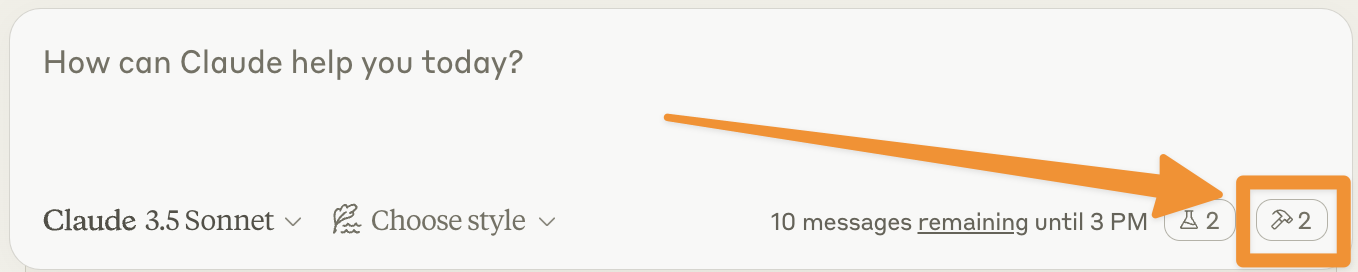
Let’s make sure Claude for Desktop is picking up the two tools we’ve exposed in our weather server. You can do this by looking for the “Add files, connectors, and more /”  icon:
icon:
After clicking on the plus icon, hover over the “Connectors” menu. You should see the weather servers listed:
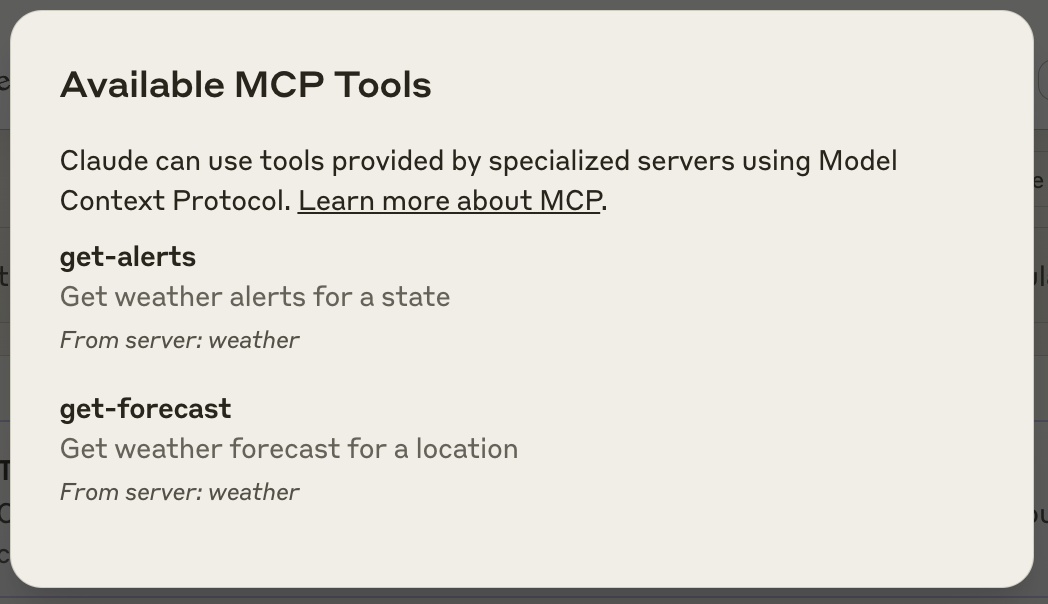
If your server isn’t being picked up by Claude for Desktop, proceed to the Troubleshooting section for debugging tips.
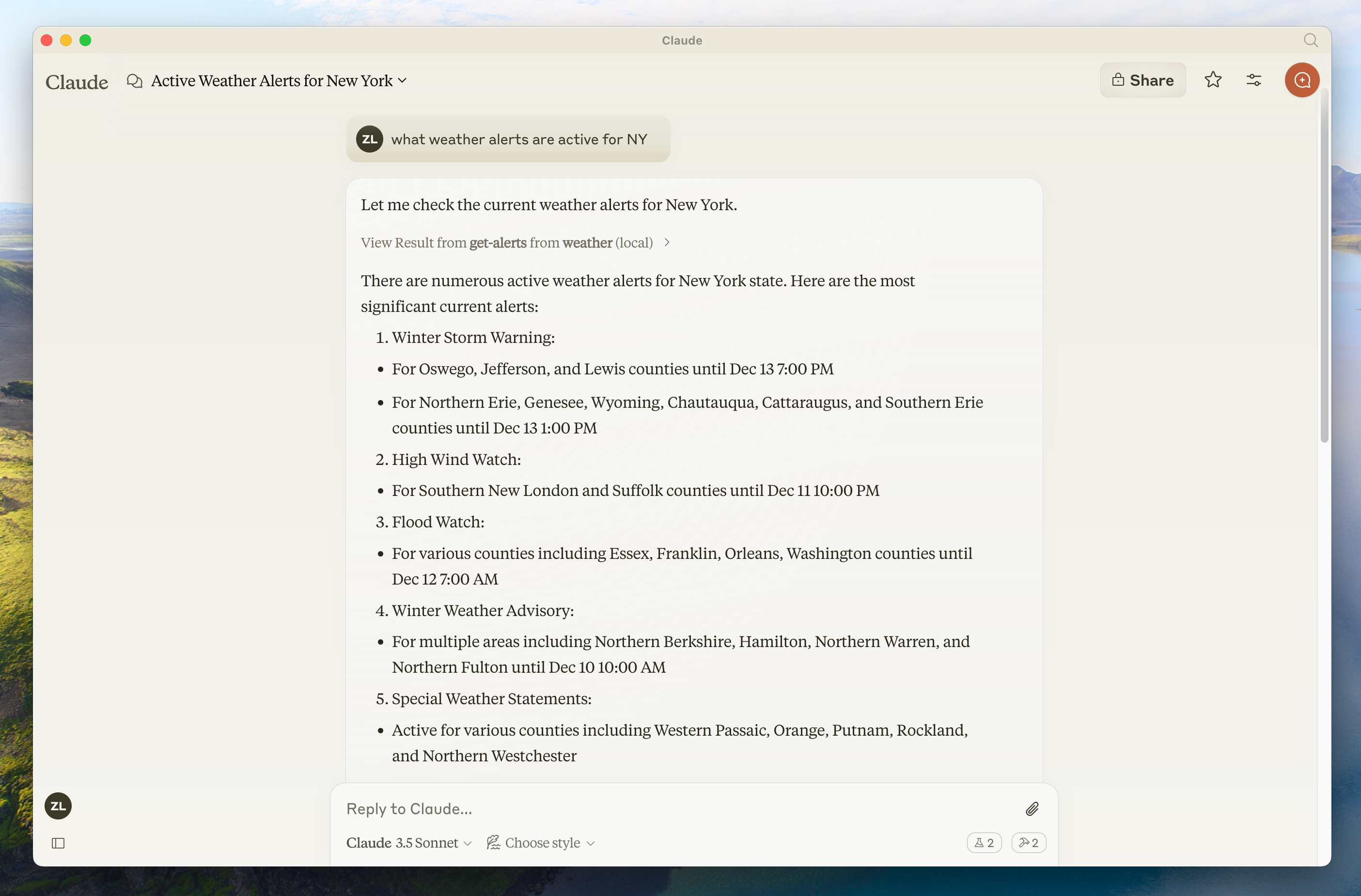
If the server has shown up in the “Connectors” menu, you can now test your server by running the following commands in Claude for Desktop:
- What’s the weather in Sacramento?
- What are the active weather alerts in Texas?
What’s happening under the hood
When you ask a question:
- The client sends your question to Claude
- Claude analyzes the available tools and decides which one(s) to use
- The client executes the chosen tool(s) through the MCP server
- The results are sent back to Claude
- Claude formulates a natural language response
- The response is displayed to you!
Troubleshooting
Claude for Desktop Integration Issues
Getting logs from Claude for Desktop
Claude.app logging related to MCP is written to log files in ~/Library/Logs/Claude (macOS) or ~/.config/Claude/logs/ (Linux):
mcp.logwill contain general logging about MCP connections and connection failures.- Files named
mcp-server-SERVERNAME.logwill contain the stderr output from the named server. Stdio servers may use stderr for all their logging, so these files are not limited to errors.
You can run the following command to list recent logs and follow along with any new ones:
# Check Claude's logs for errors
tail -n 20 -f ~/Library/Logs/Claude/mcp*.log
# Check Claude's logs for errors
tail -n 20 -f ~/.config/Claude/logs/mcp*.logServer not showing up in Claude
- Check your
claude_desktop_config.jsonfile syntax - Make sure the path to your project is absolute and not relative
- Restart Claude for Desktop completely
To properly restart Claude for Desktop, you must fully quit the application:
- Windows: Right-click the Claude icon in the system tray (which may be hidden in the “hidden icons” menu) and select “Quit” or “Exit”.
- macOS: Use Cmd+Q or select “Quit Claude” from the menu bar.
- Linux: Right-click the Claude icon in the system tray and select “Quit”, or run
pkill -f claude-desktopfrom a terminal.
Simply closing the window does not fully quit the application, and your MCP server configuration changes will not take effect.
Tool calls failing silently
If Claude attempts to use the tools but they fail:
- Check Claude’s logs for errors
- Verify your server builds and runs without errors
- Try restarting Claude for Desktop
None of this is working. What do I do?
Please refer to our debugging guide for better debugging tools and more detailed guidance.
Weather API Issues
Error: Failed to retrieve grid point data
This usually means either:
- The coordinates are outside the US
- The NWS API is having issues
- You’re being rate limited
Fix:
- Verify you’re using US coordinates
- Add a small delay between requests
- Check the NWS API status page
Error: No active alerts for [STATE]
This isn’t an error - it just means there are no current weather alerts for that state. Try a different state or check during severe weather.
Next steps
Building a client
Learn how to build your own MCP client that can connect to your server
Example servers
Check out our gallery of official MCP servers and implementations
Debugging Guide
Learn how to effectively debug MCP servers and integrations
Build with Agent Skills
Use agent skills to guide AI coding assistants through server design