Recipes
Connecting stdio vs. HTTP servers
stdio
A stdio server is a process the Inspector spawns. Everything positional is the command line:
mcp-inspector node build/index.js -- --verbose --config /etc/myserver.confPut -- before any arguments meant for your server. Without the separator, --verbose would be
parsed by the Inspector and never reach the server.
Give the process environment variables with -e and a working directory with --cwd:
mcp-inspector -e API_KEY=abc123 -e REGION=us-east-1 --cwd ~/projects/my-server \
  node build/index.js
The server’s stderr lands in the Console tab (web) or the Console tab (o, TUI), which is where most stdio servers put their diagnostics, so check there first when a connection fails for no visible reason.
HTTP and SSE
mcp-inspector --server-url https://api.example.com/mcp --transport http \
  --header "X-Tenant: acme"
--transport accepts http (Streamable HTTP) and sse. If the server is protected, see Authorization: no setup is needed in advance, because when the server answers 401 the Inspector runs the OAuth flow described there and retries the connection.
For an HTTP server, also decide its protocol era. The default is legacy; set modern or auto in Server Settings (or protocolEra in the catalog file) to exercise the 2026-07-28 behavior. For an ad-hoc target, pass it at launch with --protocol-era legacy|auto|modern.
Importing an existing client config
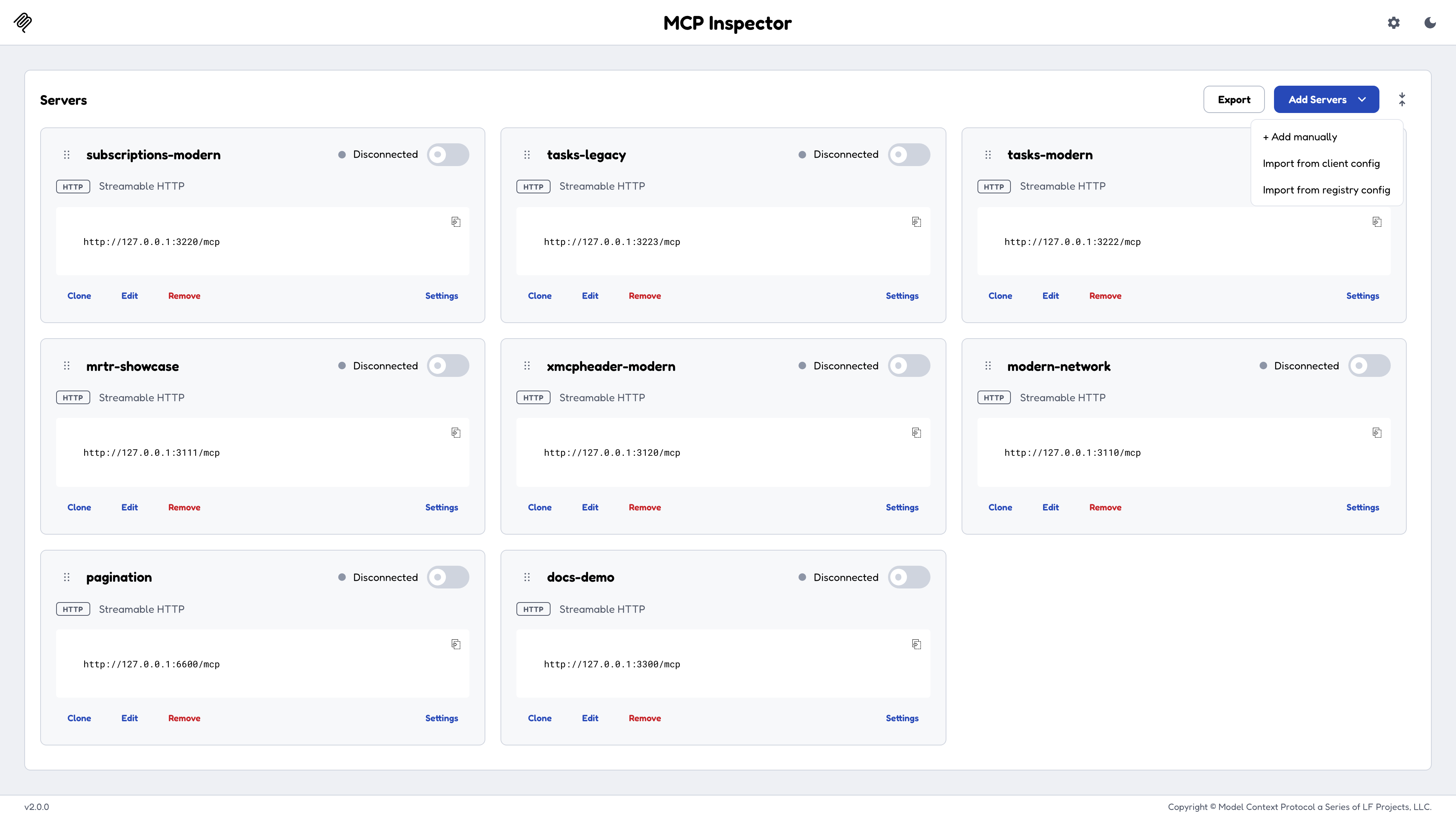
On the Servers screen, Add Servers can import MCP servers you have already configured
elsewhere instead of retyping them. It parses Claude Desktop, Cursor, Cline, and VS Code client
configs directly, and it also reads a server’s own MCP Registry server.json.
Import merges into the active catalog (the Inspector’s writable server list). When an imported server’s id is already taken, you choose whether to overwrite, skip or rename it. If you’d rather not touch your catalog at all, launch against the foreign file read-only instead:
mcp-inspector --config ~/Library/Application\ Support/Claude/claude_desktop_config.json--config guarantees the file is served as-is and never written, seeded, or migrated.
Reviewing an MCP App
MCP Apps are tools that carry a UI widget. For an automated reviewer (CI or an agent), use the CLI for every check that returns JSON, and open a browser only to inspect the rendered widget.
Probe the security posture without calling the tool
mcp-inspector --cli --transport http --server-url https://example.com/mcp \
  --method tools/call --tool-name <tool> --app-info --advertise-apps
--advertise-apps makes the CLI claim MCP Apps support at initialize. It is off by default because the CLI cannot render an app, but a server that shows its app tools only to app-capable clients would otherwise report no app.
One JSON line on stdout; exit 0 if the tool has an app, 2 if not, so an && chain short-circuits:
{
  "hasApp": true,
  "toolName": "get_pros",
  "resourceUri": "ui://pros/view.html",
  "csp": { "connectDomains": ["https://api.example.com"] },
  "permissions": { "clipboard": false },
  "prefersBorder": true,
  "resourceMimeType": "text/html"
}
csp and permissions (and domain, when the resource declares one) live on the UI resource rather than the tool, so --app-info reads that resource. The tool is never called.
Get the full result payload, still with no browser
mcp-inspector --cli --transport http --server-url https://example.com/mcp \
  --method tools/call --tool-name <tool> --tool-args-json '{"zip":"10001"}' --format json
Launch the web Inspector once, loopback-only
TOKEN="$(openssl rand -hex 24)"
HOST=127.0.0.1 CLIENT_PORT=6274 MCP_SANDBOX_PORT=6275 \
MCP_AUTO_OPEN_ENABLED=false MCP_INSPECTOR_API_TOKEN="$TOKEN" \
mcp-inspector --web &
Pinning MCP_SANDBOX_PORT keeps the address explicit: the app’s UI is served from a separate sandbox port, and your automation needs to know where it is.
Navigate one deep link to a rendered widget
http://127.0.0.1:6274/?serverUrl=<encoded url>&transport=http&autoConnect=<TOKEN>&openApp=<tool>&appArgs=<base64url(JSON)>&autoOpen=<TOKEN>appArgs is the tool’s arguments as base64url-encoded JSON, and every deep-link parameter is described under Deep links. autoConnect and autoOpen must both equal the session token, since autoOpen fires a tool call straight from the URL and needs the same gate as autoConnect.
Wait on a deterministic signal instead of sleeping
The Apps screen exposes a stable automation contract. Poll these attributes instead of sleeping:
| Selector | Attribute | Values |
|---|---|---|
[data-testid="apps-form"] | data-app-status | idle, then loading, then ready or error (on error, data-app-error carries the reason) |
[data-testid="connection-status"] | data-status | disconnected, connecting, then connected or error (data-error-message has the detail) |
[data-testid="connection-status"] | data-deeplink | parsed, rejected, or none (none means no deep link was given, rejected means one was refused) |
Docker
A container image is published to GitHub Container Registry for linux/amd64 and linux/arm64:
docker run --rm -p 127.0.0.1:6274:6274 ghcr.io/modelcontextprotocol/inspectorRead the session token from the container logs, or pin it with -e MCP_INSPECTOR_API_TOKEN=<value>.
The image defaults to --web, bound to 0.0.0.0:6274 with browser auto-open off, and runs as the non-root node user (uid 1000). It sets DANGEROUSLY_BIND_ALL_INTERFACES=true because a container must bind the wildcard address to be reachable through -p.
127.0.0.1: prefix on every published port. A bare -p 6274:6274 publishes on every host interface, putting a backend that spawns
processes, and the page that discloses its token, on your local network. The
image’s DANGEROUSLY_BIND_ALL_INTERFACES covers the container’s interfaces,
not the host’s. See Publish the port on loopback
only.To use the Apps tab, also publish the MCP Apps sandbox port, 6275, and 6278 for an app that declares _meta.ui.domain. Publish each on the same port number inside and out, since the browser is handed the in-container port:
docker run --rm -p 127.0.0.1:6274:6274 -p 127.0.0.1:6275:6275 \
  ghcr.io/modelcontextprotocol/inspector
Keeping your servers and secrets
The server list, OAuth state and secrets live under /home/node/.mcp-inspector, in the container’s writable layer, so --rm discards them and every run starts empty. Mount a volume there to keep them:
docker run --rm -p 127.0.0.1:6274:6274 \
  -v mcp-inspector-data:/home/node/.mcp-inspector \
  ghcr.io/modelcontextprotocol/inspector
A container has no OS keychain, so where secrets go depends on that volume:
| Situation | Secret store | Survives a restart? |
|---|---|---|
No volume on /home/node/.mcp-inspector | Memory | No, session only |
| With that volume | secrets.json on the volume, mode 0600 | Yes |
If you bind-mount a host directory instead of a named volume, it keeps its host ownership, so on Linux add --user "$(id -u):$(id -g)" or chown it to uid 1000, or saves fail with EACCES. Don’t bind-mount the secrets file on its own: it isn’t recognized as durable, and it can’t be replaced atomically.
Mounting that volume turns on file storage of secrets, and without a key the file is plaintext. Every OAuth token acquired, and every client secret and stdio env: value you save, is then written to secrets.json on the volume. It is readable by root and every member of the host’s docker group, and by anyone who gets a backup, snapshot or copy of the volume.
Give it a key, generated into a file that only you can read and that sits outside the volume, its backups and any repository:
mkdir -p ~/.config/mcp-inspector
(umask 077 && openssl rand -base64 32 > ~/.config/mcp-inspector/secret-key)
Even encrypted, secrets on disk carry moderate risk. See what the file store protects against.
Hand the key to the container as a file with MCP_INSPECTOR_SECRET_KEY_FILE, not as an environment variable. A key passed with -e MCP_INSPECTOR_SECRET_KEY=… is readable by anyone who can run docker inspect or docker exec.
docker run
docker run --rm -p 127.0.0.1:6274:6274 \
  -v mcp-inspector-data:/home/node/.mcp-inspector \
  -v "$HOME/.config/mcp-inspector/secret-key:/run/secrets/mcp_inspector_secret_key:ro" \
  -e MCP_INSPECTOR_SECRET_KEY_FILE=/run/secrets/mcp_inspector_secret_key \
  ghcr.io/modelcontextprotocol/inspector
Compose secrets
services:
  inspector:
    image: ghcr.io/modelcontextprotocol/inspector
    ports: ["127.0.0.1:6274:6274"]
    volumes: ["mcp-inspector-data:/home/node/.mcp-inspector"]
    environment:
      MCP_INSPECTOR_SECRET_KEY_FILE: /run/secrets/mcp_inspector_secret_key
    secrets: [mcp_inspector_secret_key]
secrets:
  mcp_inspector_secret_key:
    file: ${HOME}/.config/mcp-inspector/secret-key
volumes:
  mcp-inspector-data:
Without Swarm, Compose secrets are bind mounts that keep the host file’s owner and mode, so the 0600 key file must be owned by uid 1000. On a Linux host where your uid is different, run sudo chown 1000 ~/.config/mcp-inspector/secret-key rather than loosening its mode. Supply the same key on every run.
If the key file is missing, unreadable or empty, or both key variables are set, the Inspector refuses to read or write the secrets file rather than falling back to plaintext, and says why in the log and in the settings dialogs’ footer. Everything else about the store (selection order, location, permissions) is under Where secrets are stored.
Health checks and other modes
The image’s HEALTHCHECK probes the web UI at the address HOST binds. --cli and --tui have no web server, so the probe detects those modes from the container’s arguments and reports healthy while they run. An external orchestrator (a Kubernetes probe, a Compose healthcheck) can call GET /healthz on the web port, which needs no token and returns only {"status":"ok"}.
<target> below is an ad-hoc target: a positional stdio command, or --server-url <url> --transport http.
docker run --rm ghcr.io/modelcontextprotocol/inspector --cli <target> --method tools/listALLOWED_ORIGINS. With -p 127.0.0.1:8080:6274 the browser’s origin becomes http://localhost:8080,
which no longer matches the in-container port, and connects will 403. Either
run -e CLIENT_PORT=8080 -p 127.0.0.1:8080:8080, or set -e ALLOWED_ORIGINS=http://localhost:8080,http://127.0.0.1:8080.Hosting on a network
The Inspector binds 127.0.0.1 by default and its backend spawns processes, so treat exposing it to a network as a deliberate decision.
The Inspector refuses to bind the wildcard all-interfaces addresses (0.0.0.0, ::, and every equivalent spelling) unless you set DANGEROUSLY_BIND_ALL_INTERFACES=true. Binding a specific address is allowed with no opt-in, because that’s one deliberate exposure rather than every interface at once, which is the shape DNS-rebinding attacks target.
| Goal | What to do |
|---|---|
| Reach it from another machine on the LAN | HOST=192.168.1.50. The default origin allow-list follows the bind host, so http://192.168.1.50:6274 is accepted with no further config. |
| Behind TLS or a reverse proxy | The browser’s Origin becomes the public origin, which won’t match the bind host. Set ALLOWED_ORIGINS=https://inspector.example.com, and for MCP Apps set MCP_SANDBOX_FULL_ADDRESS (see below). |
| Wildcard bind (containers) | Set DANGEROUSLY_BIND_ALL_INTERFACES=true. Loopback access still works out of the box; reaching it at a non-loopback address needs ALLOWED_ORIGINS. |
ALLOWED_ORIGINS replaces the default list rather than merging with it. List every origin you’ll browse from, including the loopback forms you want to keep:
ALLOWED_ORIGINS=http://localhost:6274,http://127.0.0.1:6274,http://192.168.1.50:6274Each entry must include the scheme; a scheme-less value is dropped with a warning. A blank value does not disable the check; it falls back to the default. There is no knob to turn origin validation off.
Two further caveats when going off loopback:
- MCP Apps need their sandbox port reachable too. It’s a separate listener (
6275by default, set withMCP_SANDBOX_PORT), so expose or forward it alongside the web port. - Behind TLS or a reverse proxy, give MCP Apps their public addresses. By default the sandbox is advertised as
http://<bind host>:6275, which anhttps://page blocks as mixed content. SetMCP_SANDBOX_FULL_ADDRESS(for examplehttps://inspector-sandbox.example.com/sandbox) and, for apps that declare_meta.ui.domain,MCP_APP_ORIGIN_FULL_ADDRESS(for examplehttps://inspector-apps.example.com). Each needs its own hostname or port; an address that shares the Inspector’s origin is refused. - MCP Apps can’t render at a bare IPv6 literal. A bracketed IPv6 literal isn’t a valid CSP host-source, so browse at a name or an IPv4 address.
Whatever the shape: keep authentication on. Do not set DANGEROUSLY_OMIT_AUTH on anything reachable by anyone but you. The reasoning is under Security.
Keeping a connection open with mcpdo
When an exploration spans many calls (a multi-step flow over one session, a log you watch, an agent using a server’s tools mid-session), reconnecting for every --cli invocation gets in the way. mcpdo holds the connection for you:
mcpdo connect my-server
mcpdo @my-server tools/call --task start_job size:=large   # task-augmented; blocks until the task finishes
mcpdo @my-server tools/call get_job_report
mcpdo @my-server logging/tail          # long-lived; Ctrl-C to stop
mcpdo disconnect my-server
A connection runs one call at a time, so commands against the same connection from other shells wait their turn.
The daemon that holds the connection starts automatically and exits about a minute after the last connection closes. Read The mcpdo connection daemon before using it on a shared machine.
Development workflow
A loop that works well in practice:
Start with the CLI
--method initialize confirms the server starts, handshakes, and reports
the capabilities you expect, in one second, with a machine-readable answer.
Most “it doesn’t work” turns out to be here.
Move to the web client for exploration
Schema-driven forms, rendered results, and the Protocol tab beside them make it fast to find the case where a tool misbehaves.
Test the edges
Invalid inputs, missing required prompt arguments, concurrent calls, and, for HTTP servers, both protocol eras. Verify the errors are as intentional as the successes.
Lock it in with the CLI
Turn what you found into a CI assertion: pipe the CLI’s --format json
output to jq -e with --stored-auth-only, so a missing token fails fast
instead of starting interactive OAuth. See Verify a server in
CI for the full
command.