Connect to remote MCP Servers
Remote connections: establish the endpoint and permissions first
The example-server.modelcontextprotocol.io URL below is an attributed source example. This run did not check its availability, operator or capabilities and does not offer it as a public test service. Obtain a URL from a trusted service operator, then confirm HTTPS, the full path, supported revisions and authentication method. Never send account credentials to an unknown endpoint.
Reachable HTTP is not sufficient
Use the Inspector CLI lab against an endpoint you control before opening a connector UI. On 2026-10-30, pinned Inspector 2.12.0 produced these results against local HTTP fixtures. They are controlled failure cases, not public service measurements.
| Controlled response | Observed result | Next check |
|---|---|---|
| Working legacy MCP server | auto fell back and listed tools; modern failed | Protocol era before account permissions |
404 | Inspector connection failed | /mcp path, reverse-proxy prefix and method |
200 text/html login page | Inspector connection failed | Redirects and login gateways; HTTP 200 does not establish an MCP result |
401 with Bearer challenge | Inspector connection failed | PRM, authorization server and the client’s supported login flow |
403 | Inspector connection failed | Scope, policy and Origin; this status alone cannot identify the cause |
Use a successful security control
The best-practices article embeds auth_ref_server.py and probe_http.py. Its synthetic good-token and other-audience-token are loopback fixture values, not real OAuth credentials. This run checked the Python SDK mcp==2.3.0 resource server: valid credentials returned a discovery result; missing, invalid and wrong-resource credentials returned 401 with no MCP result. Holding the same valid credentials fixed, the allowed http://127.0.0.1:8001 Origin succeeded and an untrusted Origin returned 403. An arbitrary 4xx response cannot prove all of these boundaries.
Copy the two embedded files, start python3 auth_ref_server.py in an environment with the pinned SDK, then run in another terminal:
python3 probe_http.py http://127.0.0.1:8001/mcp --token good-token --expect-auth --bad-audience-token other-audience-tokenThe probe carries valid credentials for its protocol and Origin negative cases, so an authentication failure cannot masquerade as Origin validation. It does not cover an allowed-Origin positive case; also send allowed, untrusted and absent Origin with the same valid credentials against your configuration and inspect the MCP results. Non-browser requests without Origin still need authentication. A synthetic token verifier does not validate JWT signatures, issuer, PKCE or an end-to-end OAuth flow.
Then configure the connector: check your client’s Custom Connector support, exact redirect URI, organization policy and tool permissions. Source screenshots, shortcuts and generic mentions of API keys or passwords do not guarantee a current client’s input methods. This run did not operate a real desktop UI, sign in remotely or exercise an OAuth callback; use the authorization tutorial to verify those stages separately.
Remote MCP servers extend AI applications’ capabilities beyond your local environment, providing access to internet-hosted tools, services, and data sources. By connecting to remote MCP servers, you transform AI assistants from helpful tools into informed teammates capable of handling complex, multi-step projects with real-time access to external resources.
Many clients now support remote MCP servers, enabling a wide range of integration possibilities. This guide demonstrates how to connect to remote MCP servers using Claude as an example, one of the many clients that support MCP. While we focus on Claude’s implementation through Custom Connectors, the concepts apply broadly to other MCP-compatible clients.
Understanding Remote MCP Servers
Remote MCP servers function similarly to local MCP servers but are hosted on the internet rather than your local machine. They expose tools, prompts, and resources that Claude can use to perform tasks on your behalf. These servers can integrate with various services such as project management tools, documentation systems, code repositories, and any other API-enabled service.
The key advantage of remote MCP servers is their accessibility. Unlike local servers that require installation and configuration on each device, remote servers are available from any MCP client with an internet connection. This makes them ideal for web-based AI applications, integrations that emphasize ease of use, and services that require server-side processing or authentication.
What are Custom Connectors?
Custom Connectors serve as the bridge between Claude and remote MCP servers. They allow you to connect Claude directly to the tools and data sources that matter most to your workflows, enabling Claude to operate within your favorite software and draw insights from the complete context of your external tools.
With Custom Connectors, you can:
- Connect Claude to existing remote MCP servers provided by third-party developers
- Build your own remote MCP servers to connect with any tool
Connecting to a Remote MCP Server
The process of connecting Claude to a remote MCP server involves adding a Custom Connector through the Claude interface. This establishes a secure connection between Claude and your chosen remote server.
Navigate to Connector Settings
Open Claude Desktop or Claude in your browser, then navigate to the settings page:
- Desktop: Either use the keyboard shortcut
Ctrl+Commaor click the top-left menu icon , hover over “File”, and select “Settings”
- Browser: Either use the keyboard shortcut
⌘⇧,(macOS) or click on your profile icon, and select “Settings” from the menu
Once you’re in the settings page, click “Connectors” in the sidebar. This displays your currently configured connectors and provides options for adding new ones.
Add a Custom Connector
In the Connectors section, click the “Add” button at the top-right of the window, then select “Add custom connector” from the dropdown. This begins the connection process. To follow along, copy/paste the URL below:
https://example-server.modelcontextprotocol.io/mcp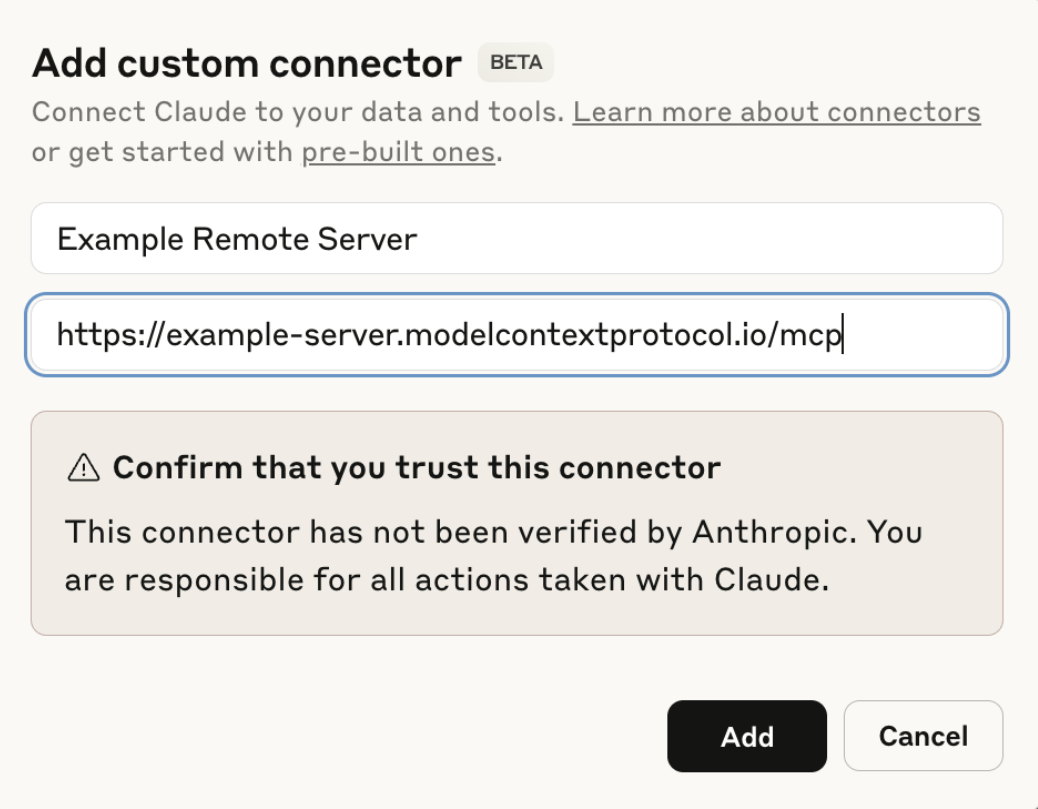
A dialog will appear prompting you to enter the remote MCP server URL. This URL should be provided by the server developer or administrator. Enter the complete URL, ensuring it includes the proper protocol (https://) and any necessary path components.

After entering the URL, click “Add” to proceed with the connection.
Complete Authentication
Most remote MCP servers require authentication to ensure secure access to their resources. The authentication process varies depending on the server implementation but commonly involves OAuth, API keys, or username/password combinations.
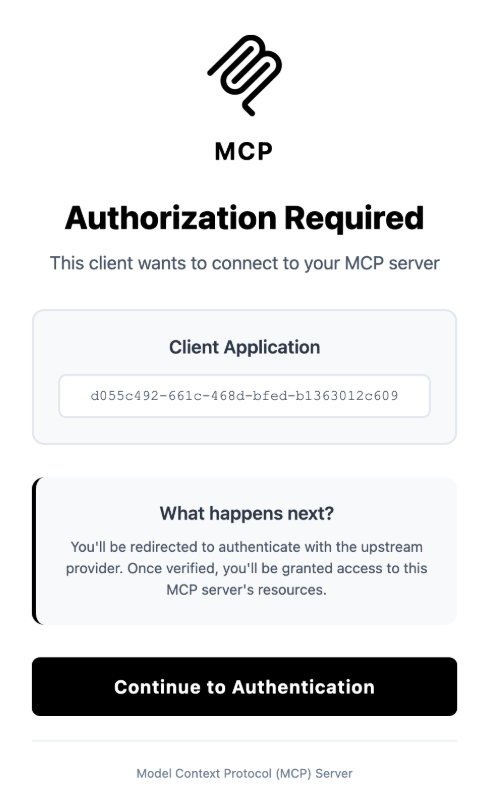
Follow the authentication prompts provided by the server. This may redirect you to a third-party authentication provider or display a form within Claude. Once authentication is complete, Claude will establish a secure connection to the remote server.
Access Resources and Prompts
After successful connection, the remote server’s resources and prompts become available in your Claude conversations. You can access these by clicking the “Add files, connectors, and more /” indicator  in the bottom-left corner of the message input area. Then hover over “Connectors”, move the cursor over “Add to Example Remote Server”, where hovering displays the attachment menu.
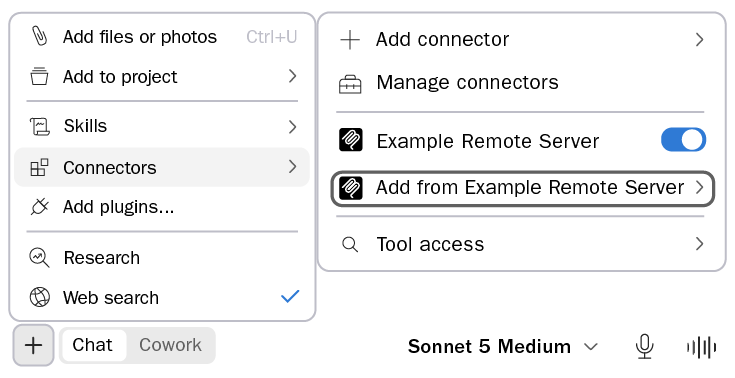
The menu displays all available resources and prompts from your connected server. Select the items you want to include in your conversation. These resources provide Claude with context and information from your external tools.
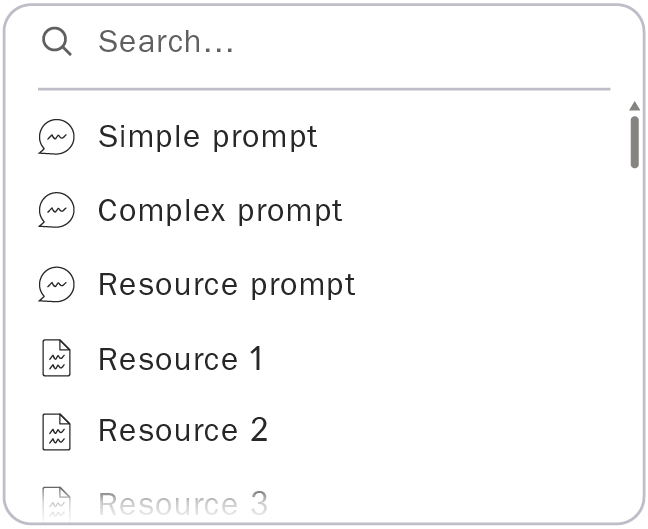
Configure Tool Permissions
Remote MCP servers often expose multiple tools with varying capabilities. You can control which tools Claude is allowed to use by configuring permissions in the connector settings. This ensures Claude only performs actions you’ve explicitly authorized.
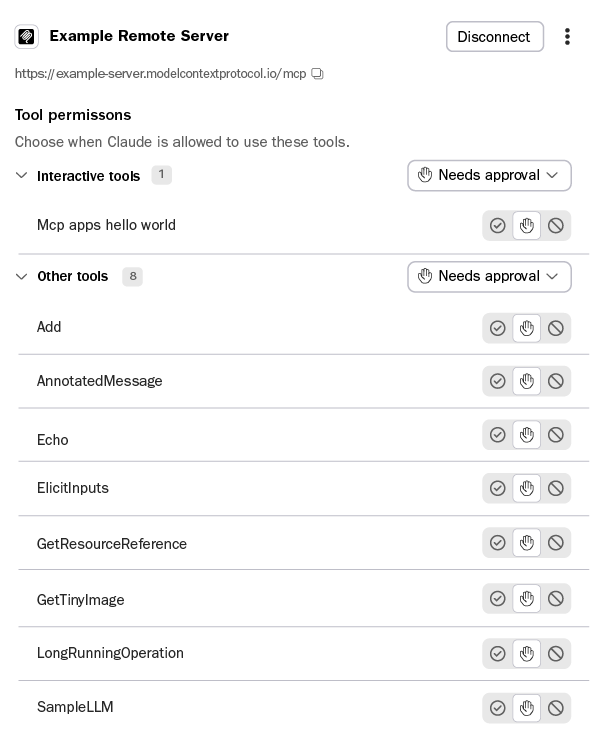
Navigate back to the Connectors settings and click on your connected server. Here you can enable or disable specific tools, set usage limits, and configure other security parameters according to your needs.
Best Practices for Using Remote MCP Servers
When working with remote MCP servers, consider these recommendations to ensure a secure and efficient experience:
Security considerations: Always verify the authenticity of remote MCP servers before connecting. Only connect to servers from trusted sources, and review the permissions requested during authentication. Be cautious about granting access to sensitive data or systems.
Managing multiple connectors: You can connect to multiple remote MCP servers simultaneously. Organize your connectors by purpose or project to maintain clarity. Regularly review and remove connectors you no longer use to keep your workspace organized and secure.
Next Steps
Now that you’ve connected Claude to a remote MCP server, you can explore its capabilities in your conversations. Try using the connected tools to automate tasks, access external data, or integrate with your existing workflows.
Build your own remote server
Create custom remote MCP servers to integrate with proprietary tools and services
Explore available servers
Browse our collection of official and community-created MCP servers
Connect local servers
Learn how to connect Claude Desktop to local MCP servers for direct system access
Understand the architecture
Dive deeper into how MCP works and its architecture
Remote MCP servers unlock powerful possibilities for extending Claude’s capabilities. As you become familiar with these integrations, you’ll discover new ways to streamline your workflows and accomplish complex tasks more efficiently.